

All operations on this page require Global Administrator privileges.
Accessing user management
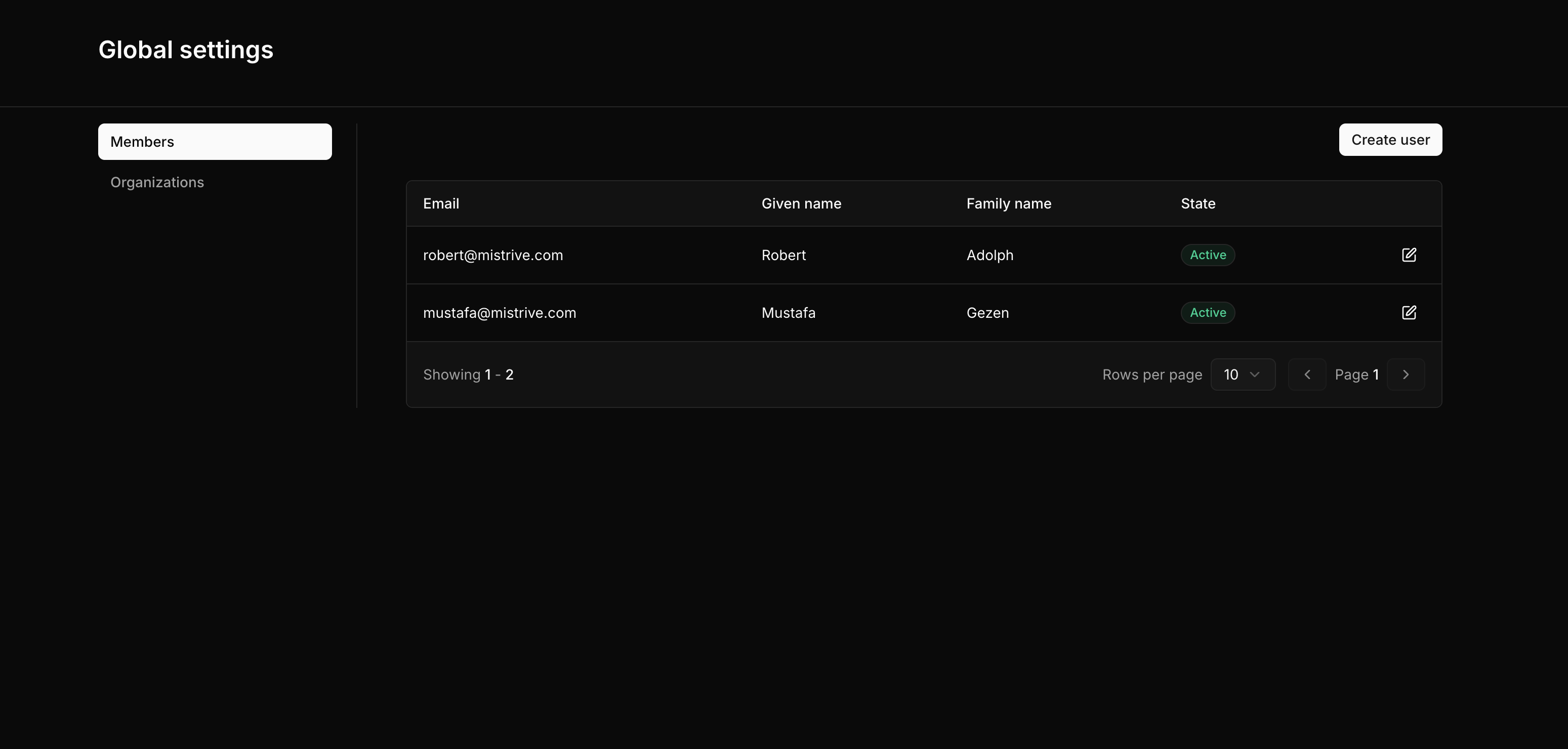
Navigate to Global Settings from the user menu in the top-right corner. The Members page displays all users in the system with their current state.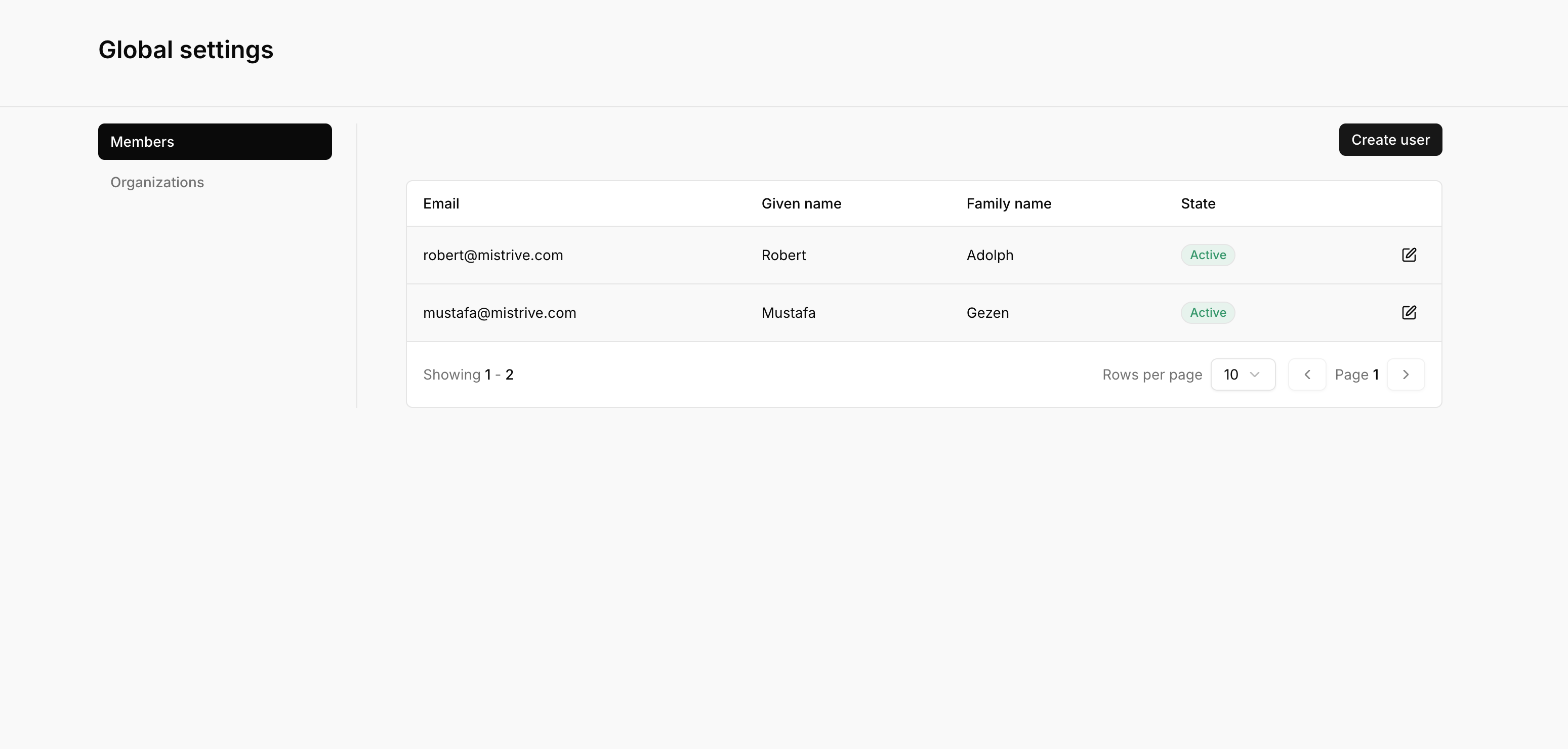
Creating user accounts
1
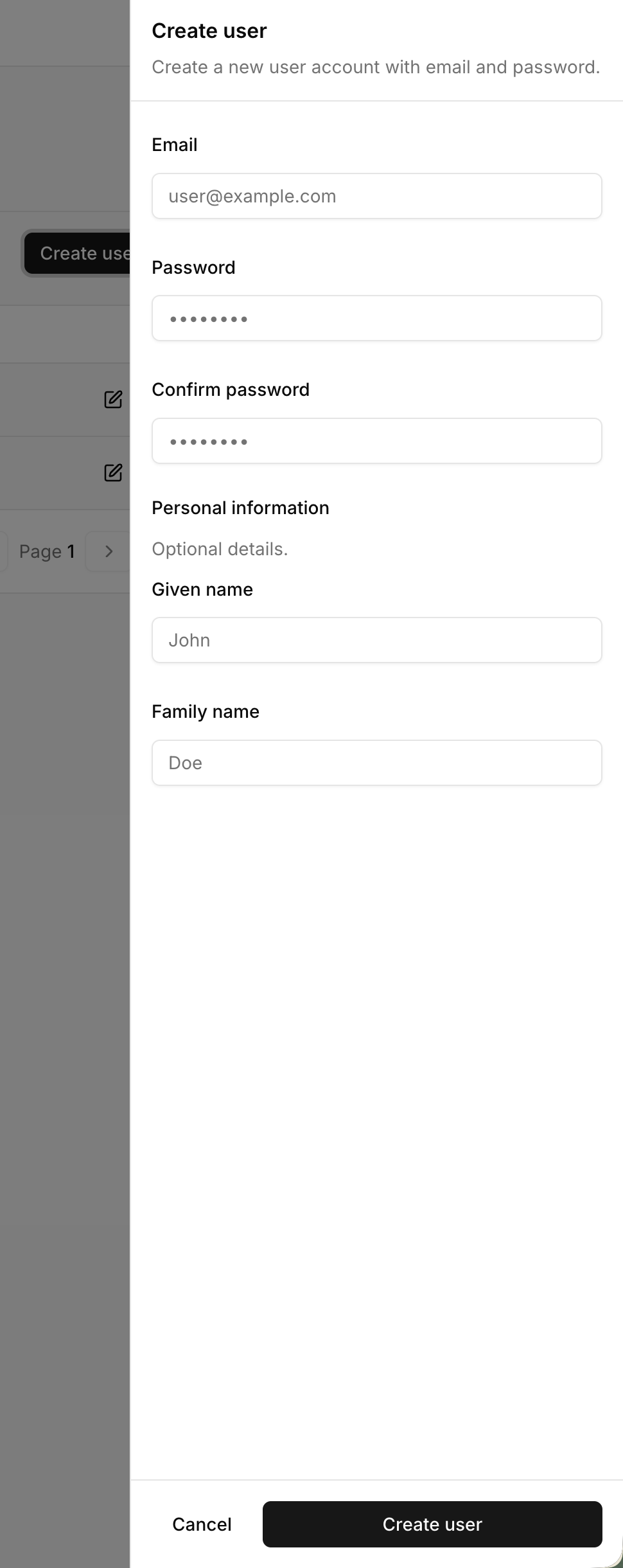
Open the create user form
Click Create user in the top-right corner of the Members page.
2
Enter account details
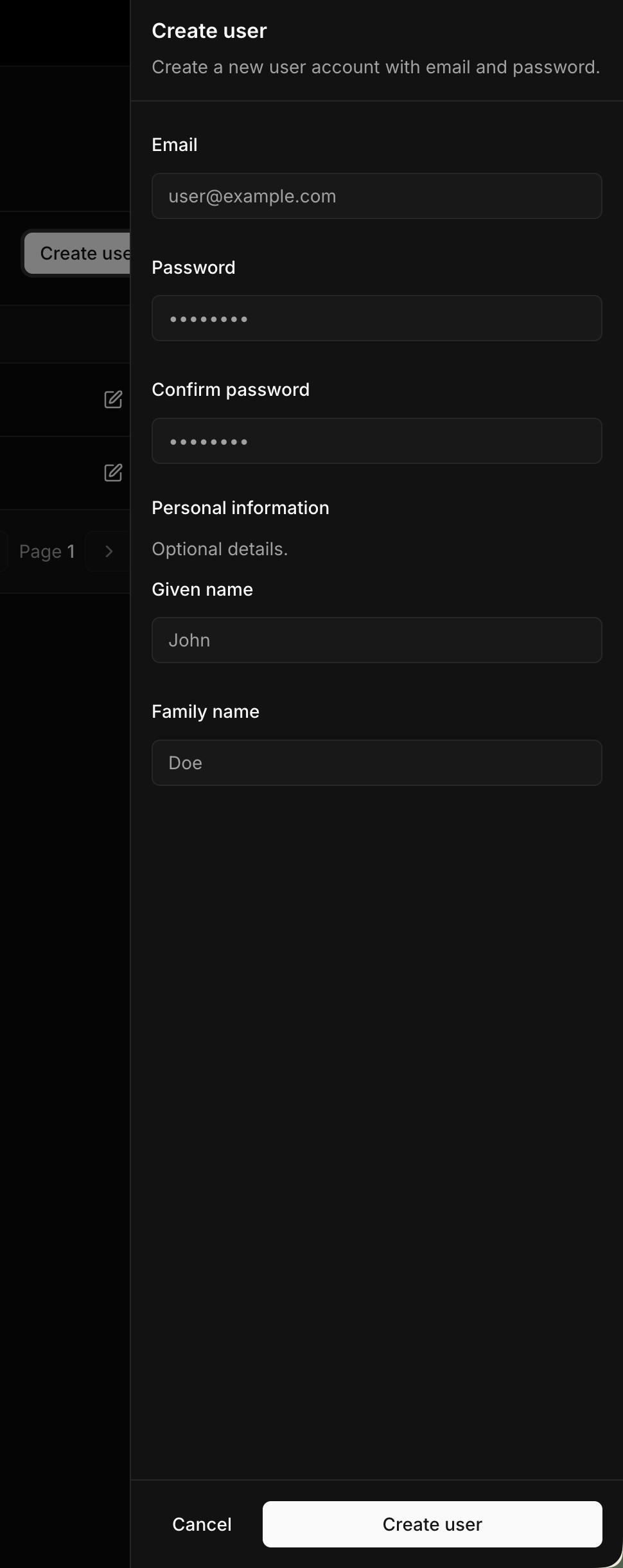
Provide the user’s email address and set an initial password. Passwords must be at least 8 characters.
3
Add personal information (optional)
Optionally enter the user’s given name and family name for display purposes.
4
Create the account
Click Create user to create the account. The user can now sign in with the provided credentials.
Managing an existing user
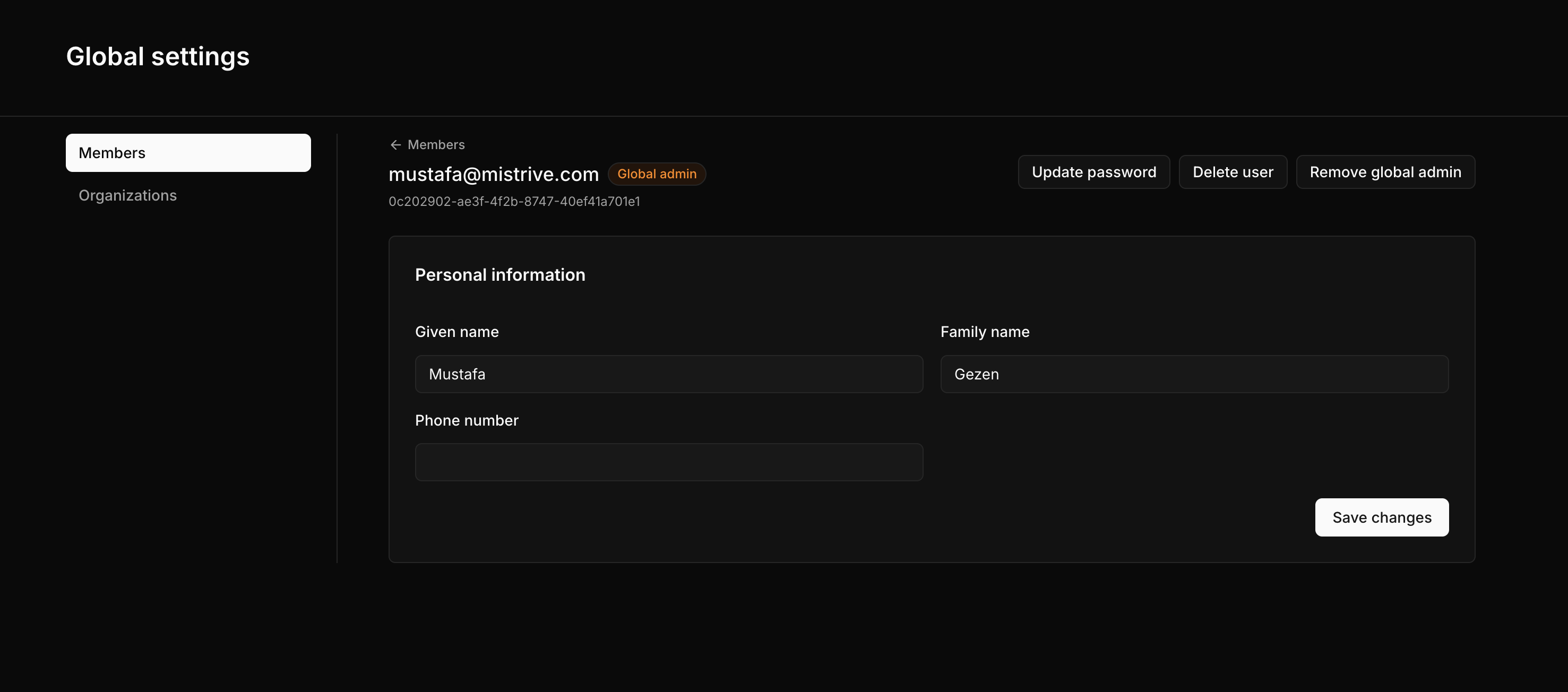
Click the edit icon next to any user to open their detail page. From here you can update personal information, change passwords, manage admin status, and control account state.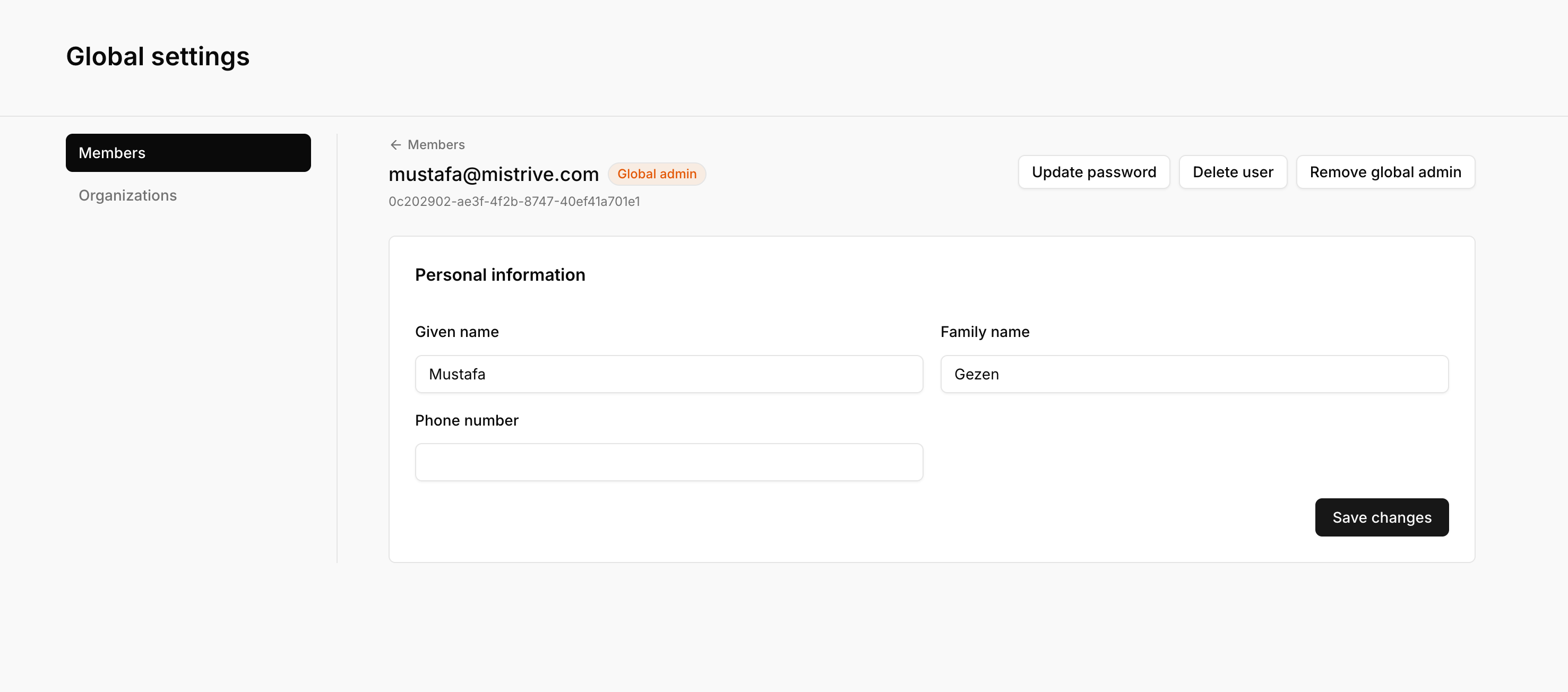
Changing a user’s password
As an administrator, you can reset any user’s password without knowing their current password.1
Open the user detail page
Navigate to Global Settings and click the edit icon next to the user.
2
Click Update password
Click the Update password button in the actions area.
3
Enter the new password
Enter the new password twice to confirm. Passwords must be at least 8 characters.
4
Save the password
Click Update password to apply the change. The user’s existing sessions remain active.
Making a user a global administrator
Global administrators have full access to manage all users, organizations, and platform settings.1
Open the user detail page
Navigate to Global Settings and click the edit icon next to the user.
2
Grant administrator privileges
Click Make global admin in the actions area. The change takes effect immediately.
Scheduling a user for deletion
Deleting a user places their account in a deletion state rather than removing it immediately. This provides a grace period during which the account can be restored.1
Open the user detail page
Navigate to Global Settings and click the edit icon next to the user.
2
Delete the user
Click Delete user and confirm the action. The account enters the “In deletion” state.
- Cannot sign in to the platform
- Retain their organization memberships and project access (frozen)
- Can be restored by an administrator
Actual deletion of user data is not yet implemented. Users will remain in the “In deletion” state indefinitely until deletion is implemented or they are restored.
Restoring a deleted user
Users scheduled for deletion can be restored to active status.1
Open the user detail page
Navigate to Global Settings and find the user (they will show “In deletion” badge).
2
Restore the user
Click Restore user and confirm. The account returns to active status.
User states
Users can be in one of three states:Self-service account settings
Users can manage certain aspects of their own account without administrator intervention:- Change password — Users can change their own password through Account Settings (requires current password)
- View organizations — Users can see which organizations they belong to
- Update personal information — Users can update their own name and contact details