

Creating an organization
Only global administrators can create organizations.
1
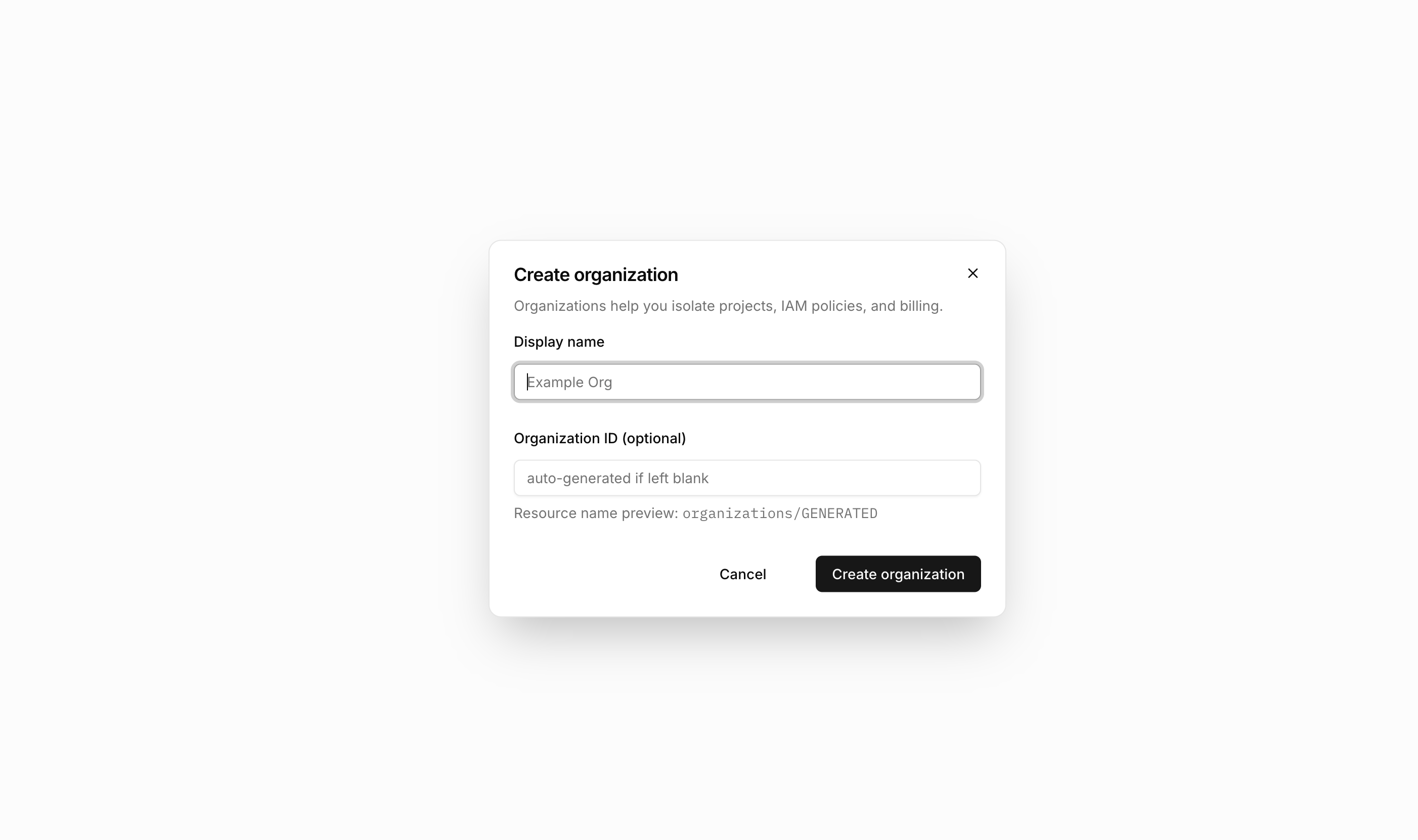
Enter organization details
Provide a display name for the organization. Optionally specify a custom ID—if omitted, the system generates one automatically.
2
Create the organization
Submit the form. The new organization appears in your organizations list.
Organization roles
When you add a member to an organization, you assign them one of four roles. Each role grants different levels of access to the organization’s projects.
Roles inherit upward: an Owner automatically has Editor permissions, an Editor automatically has Viewer permissions, and all roles include Member status.
Adding members
Add users to your organization from the organization settings page. Navigate to your organization and open Settings. Select Add Member to open the member drawer.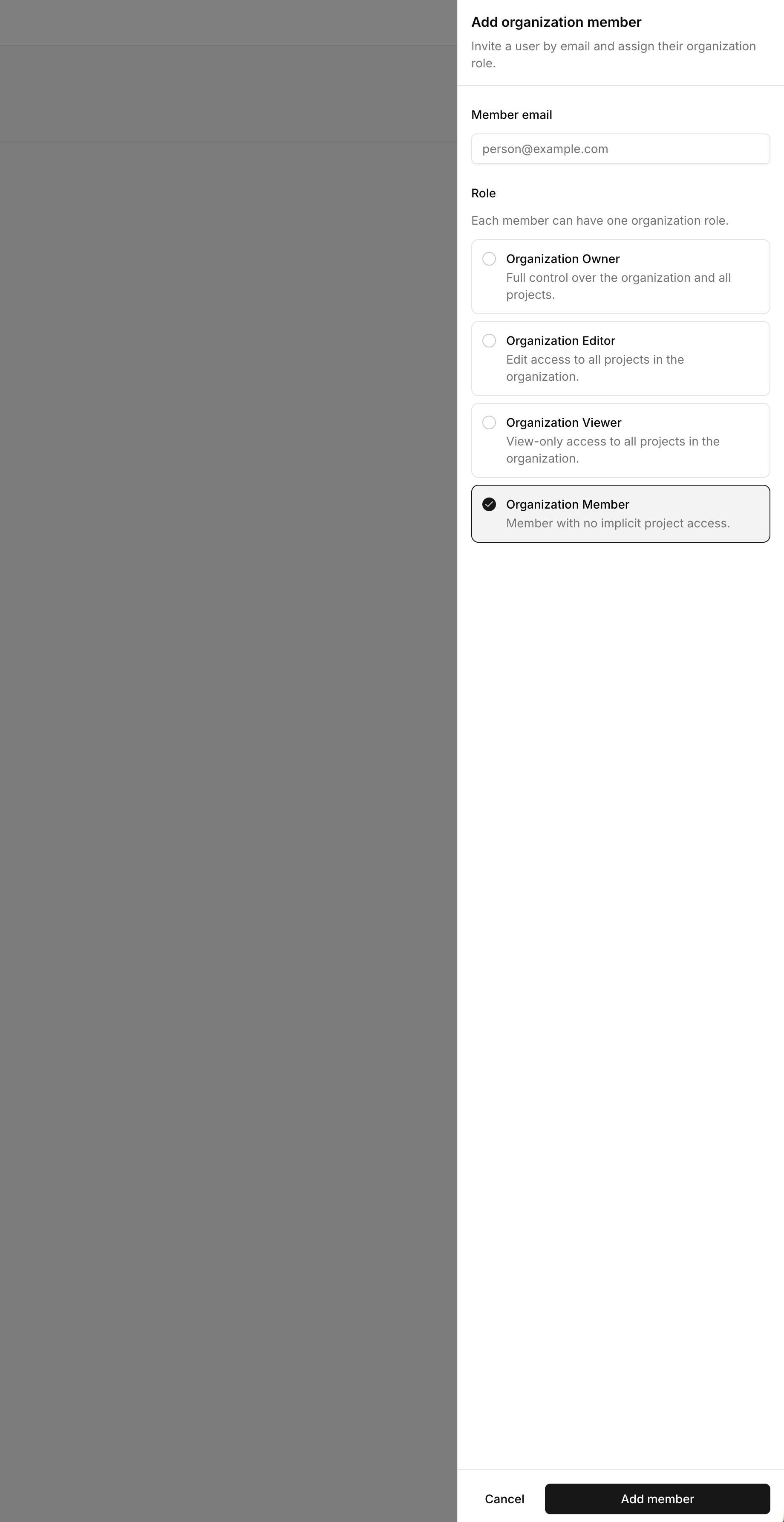

1
Enter the user's email
Type the email address of the user you want to add. The user must already exist in the system.
2
Select a role
Choose the appropriate role based on what access the user needs.
3
Add the member
Confirm to add the user to the organization.
Removing members
From the organization settings, locate the member in the list and select the remove option. This revokes their organization membership and any access inherited from organization-level roles.What’s next
Once you have an organization set up with members:- Create projects within the organization
- Configure project-level IAM for fine-grained access control