

Creating a project
Creating a project requires the Owner role on the parent organization.
1
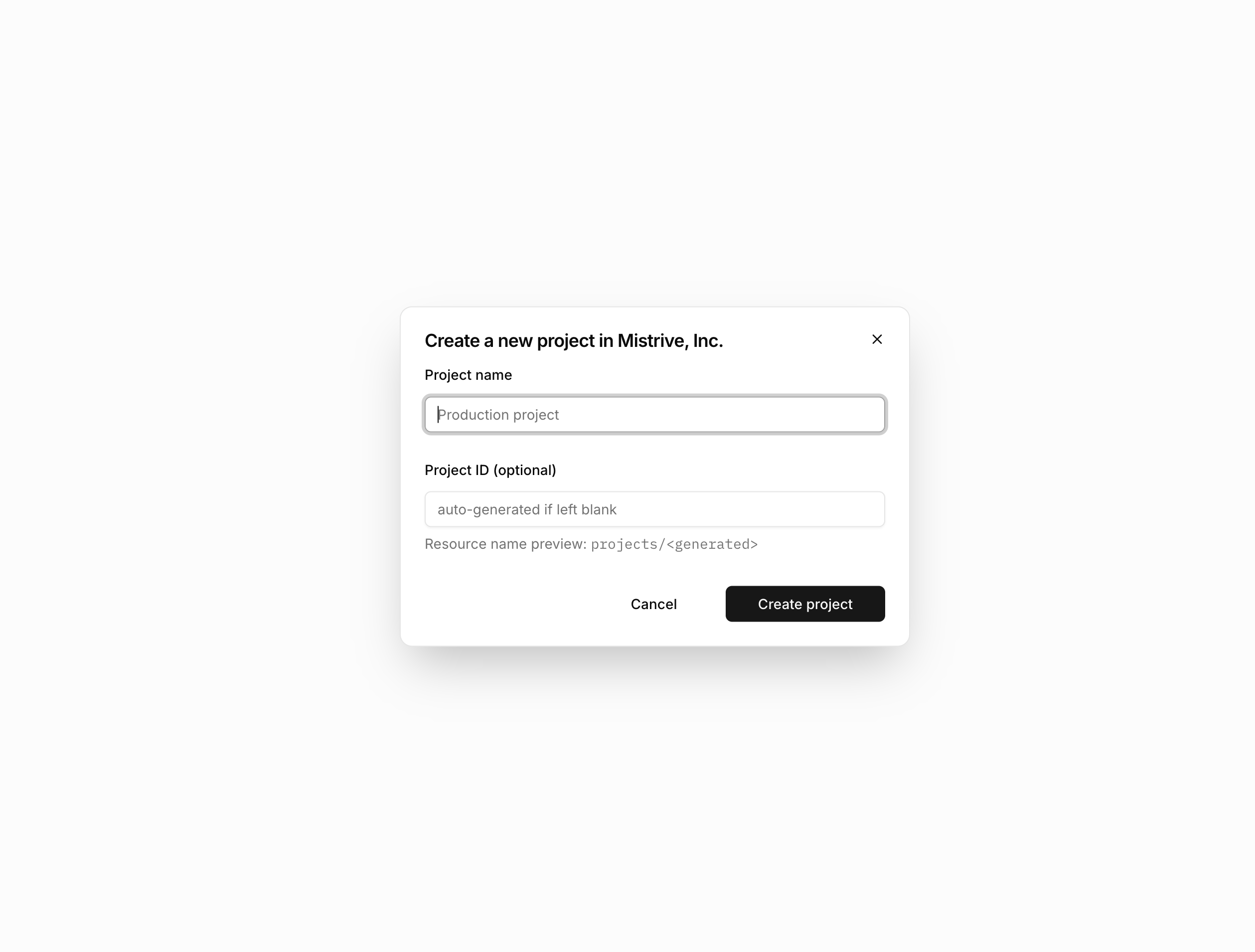
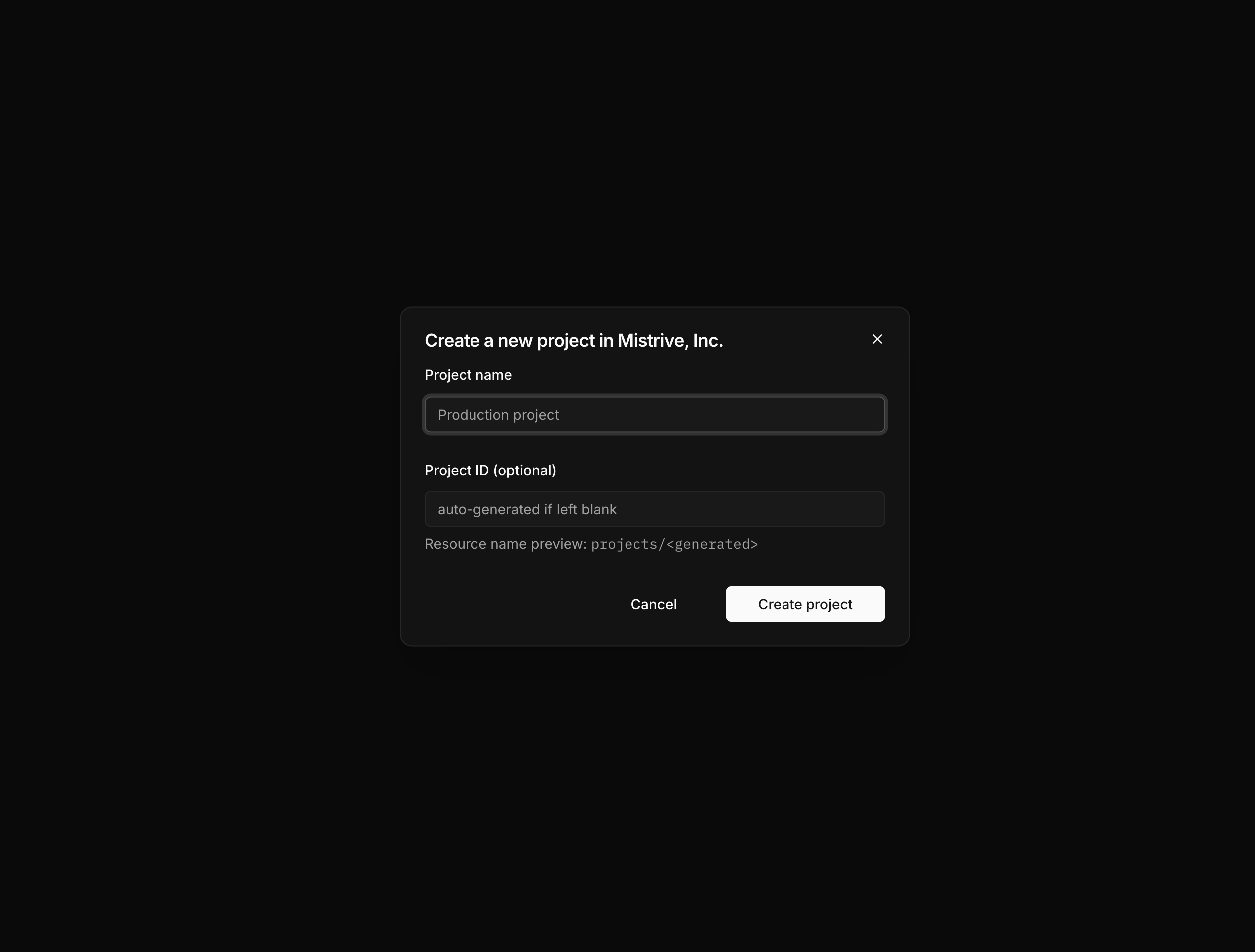
Enter project details
Provide a display name. Optionally specify a custom ID—if omitted, the system generates one automatically.
2
Create the project
Submit the form. You’re redirected to the new project’s overview page.
Project roles
Projects support both general roles and Artifact Store-specific roles. Assign roles based on what each principal needs to do.General roles
Artifact Store roles
These roles provide access specifically to Artifact Store repositories without granting broader project permissions.Managing project IAM
Control who can access your project and its resources through the IAM page. Navigate to your project and open IAM from the sidebar.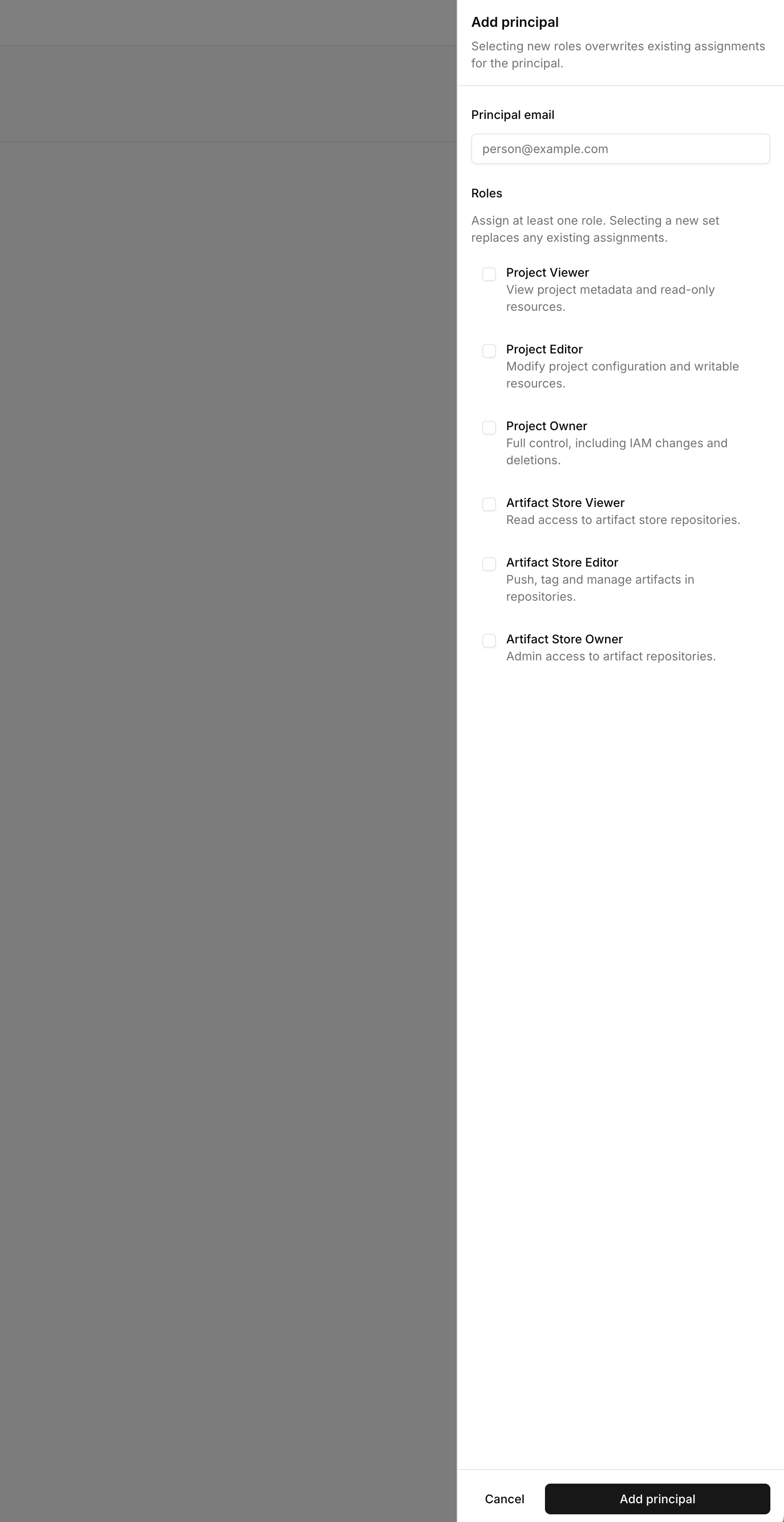
Adding a principal
1
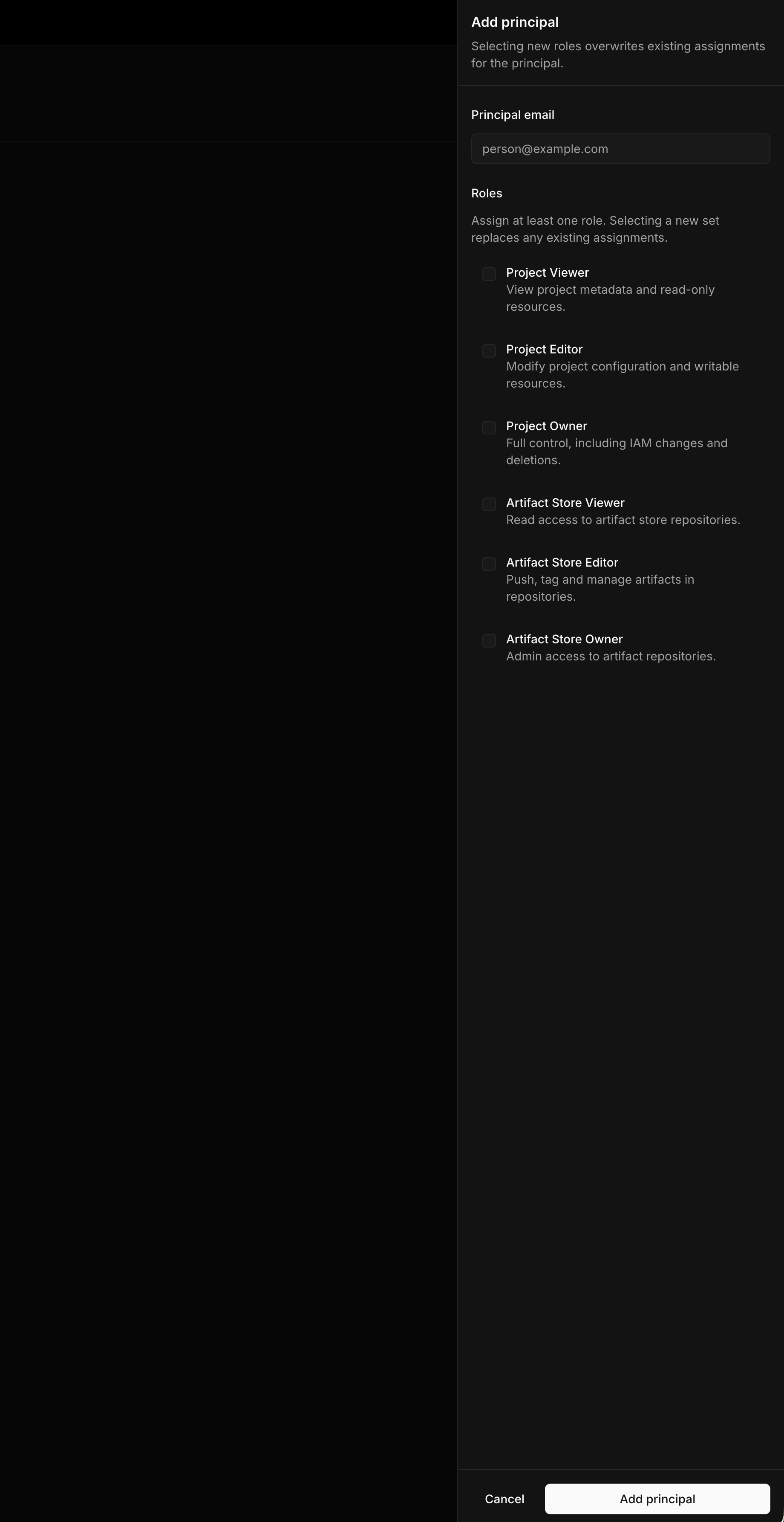
Select Add Principal
Open the IAM management interface.
2
Enter the principal identifier
Provide the user’s email address or the service account’s identifier.
3
Select roles
Choose one or more roles to grant. You can assign both general and Artifact Store roles to the same principal.
4
Confirm
Save the IAM binding. The principal can now access the project according to their assigned roles.
Removing a principal
From the IAM page, locate the principal and remove their role assignments. This revokes their project-level access but does not affect any organization-level roles they may have.Role inheritance
Permissions flow down from organizations to projects:- An Organization Owner automatically has Owner access to all projects
- An Organization Editor automatically has Editor access to all projects
- An Organization Viewer automatically has Viewer access to all projects
What’s next
With your project configured:- Create service accounts for automated access
- Set up repositories in the Artifact Store