

Access the console
Open your browser and navigate to the console URL provided by your administrator: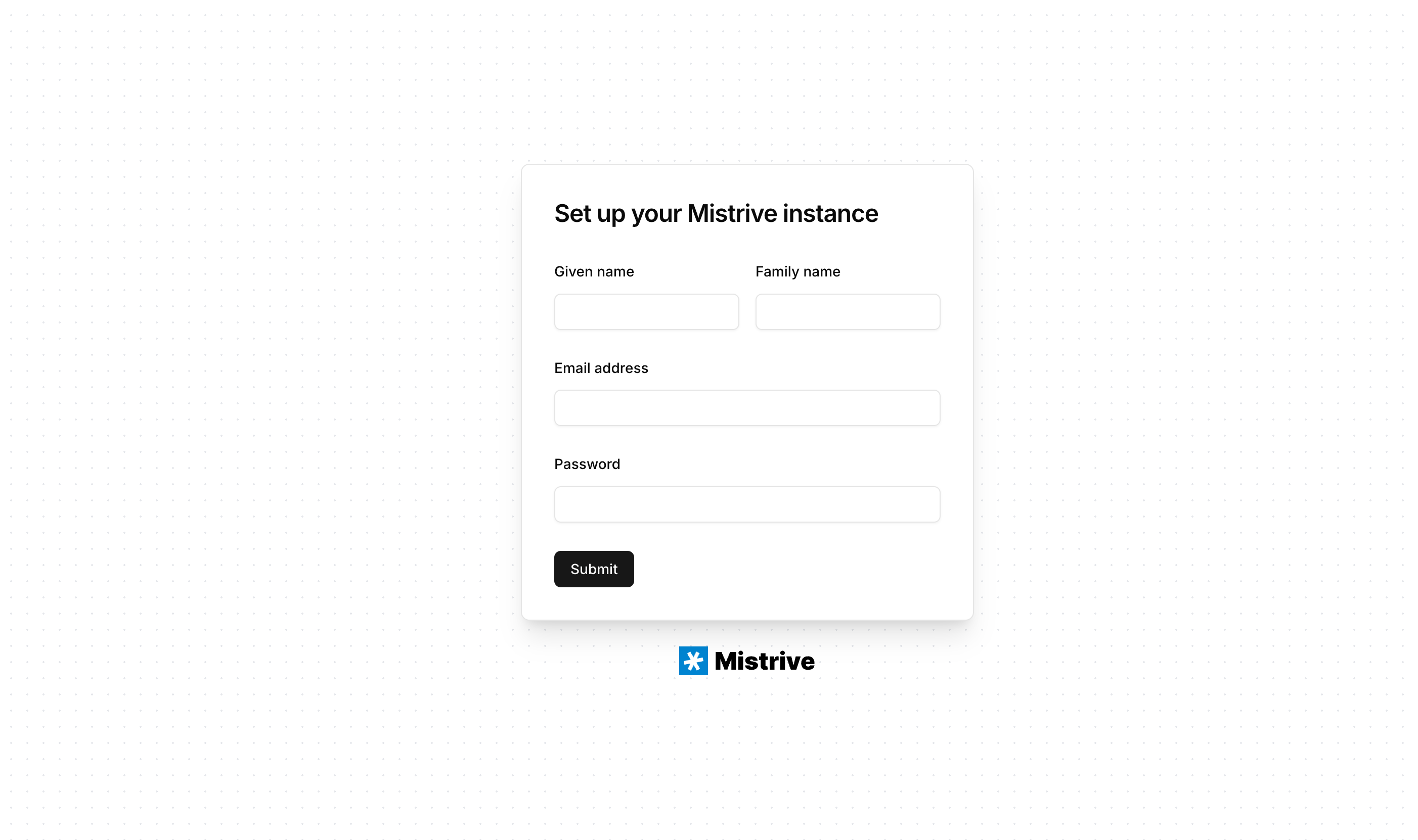
Create the administrator account
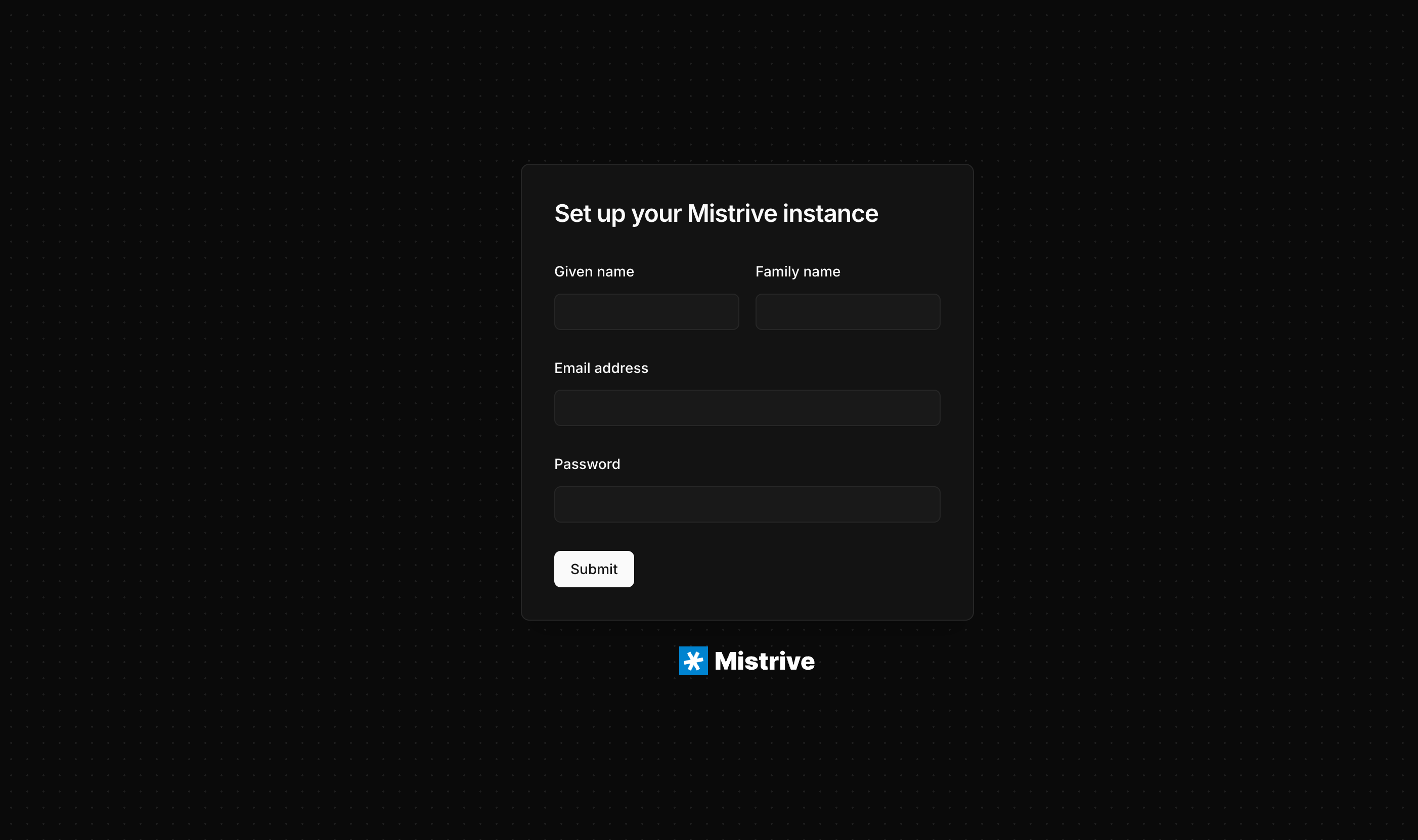
The setup wizard prompts you to create the first user account. This account automatically receives global administrator privileges.1
Enter your email
Provide a valid email address. This will be your login identifier.
2
Set a password
Choose a strong password. The system enforces minimum complexity requirements.
3
Complete setup
Submit the form to create your account and finalize the installation.
What’s next
With your administrator account ready, you can:- Create an organization to group your projects
- Add users to your organization
- Create projects for your teams
- Set up the container registry for your images