> ## Documentation Index
> Fetch the complete documentation index at: https://docs.mistrive.com/llms.txt
> Use this file to discover all available pages before exploring further.
# Initial setup
> Complete the setup wizard and create your first administrator account
When you first access the Mistrive console, the setup wizard guides you through creating the initial administrator account. This account has full access to manage users, organizations, and all platform resources.
## Access the console
Open your browser and navigate to the console URL provided by your administrator:
```
https://console.example.com
```
If this is a fresh installation, you'll be redirected to the setup wizard automatically.
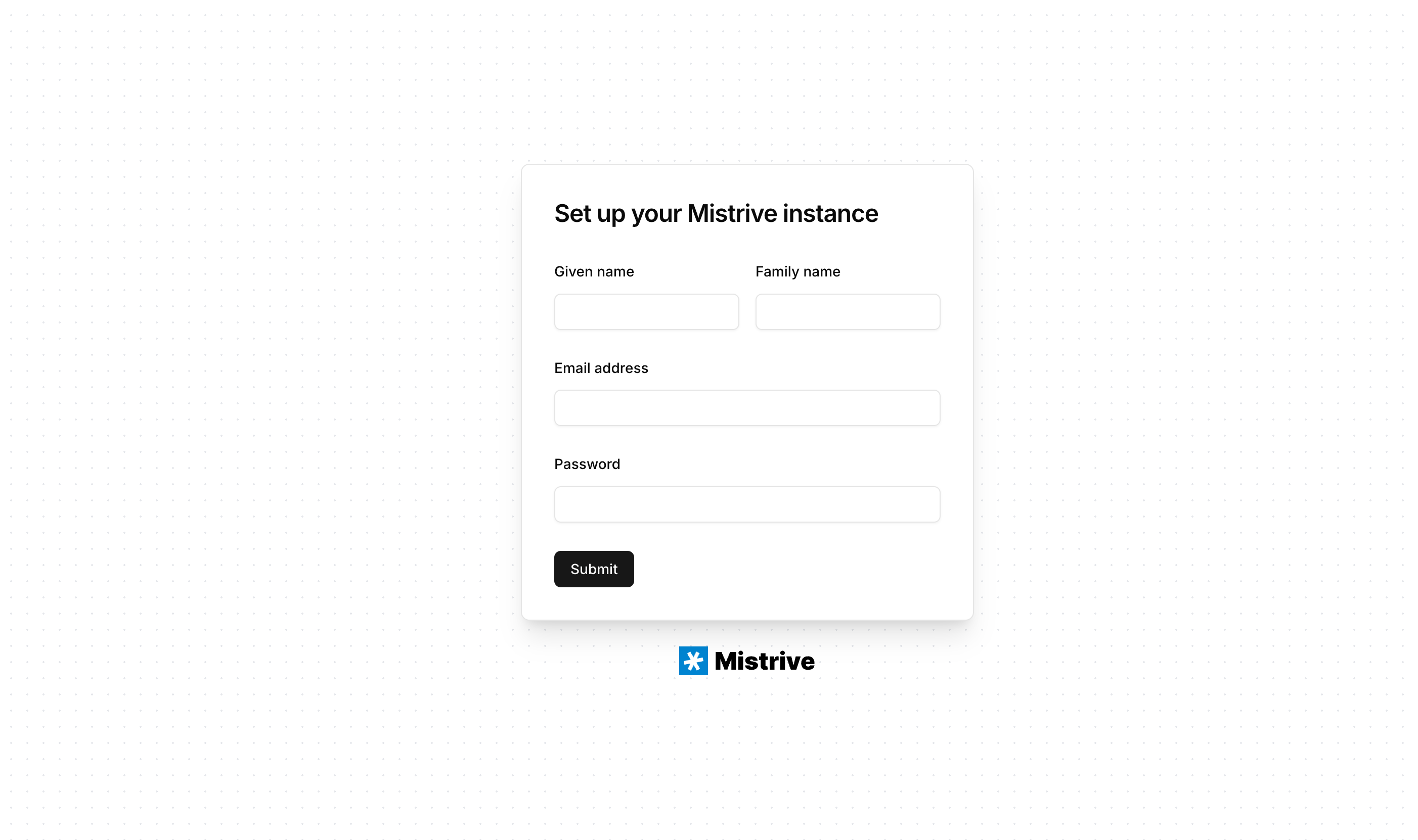
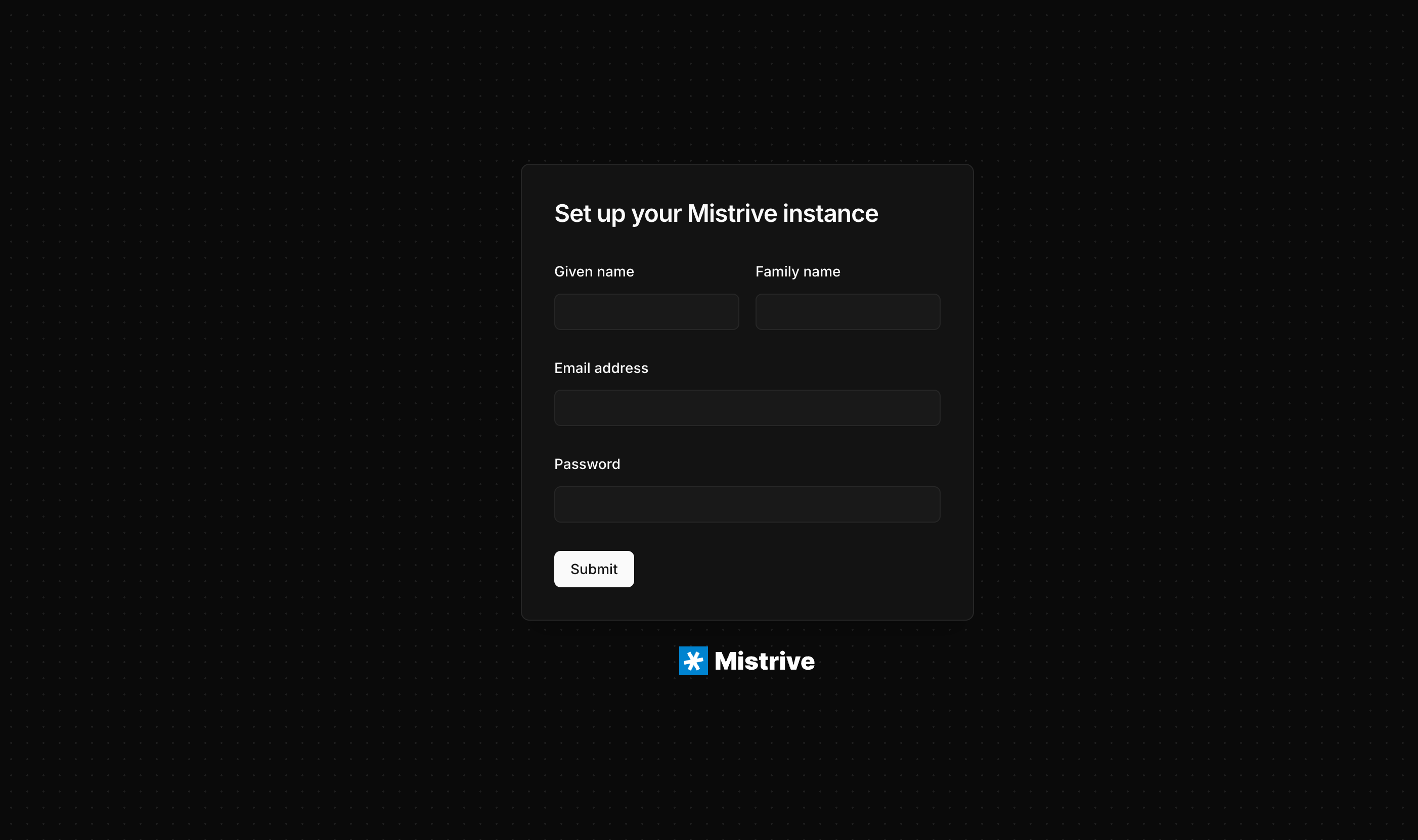 ## Create the administrator account
The setup wizard prompts you to create the first user account. This account automatically receives global administrator privileges.
Provide a valid email address. This will be your login identifier.
Choose a strong password. The system enforces minimum complexity requirements.
Submit the form to create your account and finalize the installation.
After completing setup, you're redirected to the main console where you can start creating organizations and projects.
## What's next
With your administrator account ready, you can:
1. [Create an organization](/user-guides/organizations) to group your projects
2. [Add users](/user-guides/organizations#adding-members) to your organization
3. [Create projects](/user-guides/projects) for your teams
4. [Set up the container registry](/user-guides/artifact-store) for your images
## Create the administrator account
The setup wizard prompts you to create the first user account. This account automatically receives global administrator privileges.
Provide a valid email address. This will be your login identifier.
Choose a strong password. The system enforces minimum complexity requirements.
Submit the form to create your account and finalize the installation.
After completing setup, you're redirected to the main console where you can start creating organizations and projects.
## What's next
With your administrator account ready, you can:
1. [Create an organization](/user-guides/organizations) to group your projects
2. [Add users](/user-guides/organizations#adding-members) to your organization
3. [Create projects](/user-guides/projects) for your teams
4. [Set up the container registry](/user-guides/artifact-store) for your images