> ## Documentation Index
> Fetch the complete documentation index at: https://docs.mistrive.com/llms.txt
> Use this file to discover all available pages before exploring further.
# Service accounts
> Create machine identities for CI/CD pipelines and automated workflows
Service accounts are machine identities used for automated access. Unlike user accounts, service accounts authenticate using keys rather than passwords. Use them for CI/CD pipelines, build systems, and other automated workflows.
## Creating a service account
Service accounts belong to projects. Navigate to your project, then open **IAM → Service Accounts**.
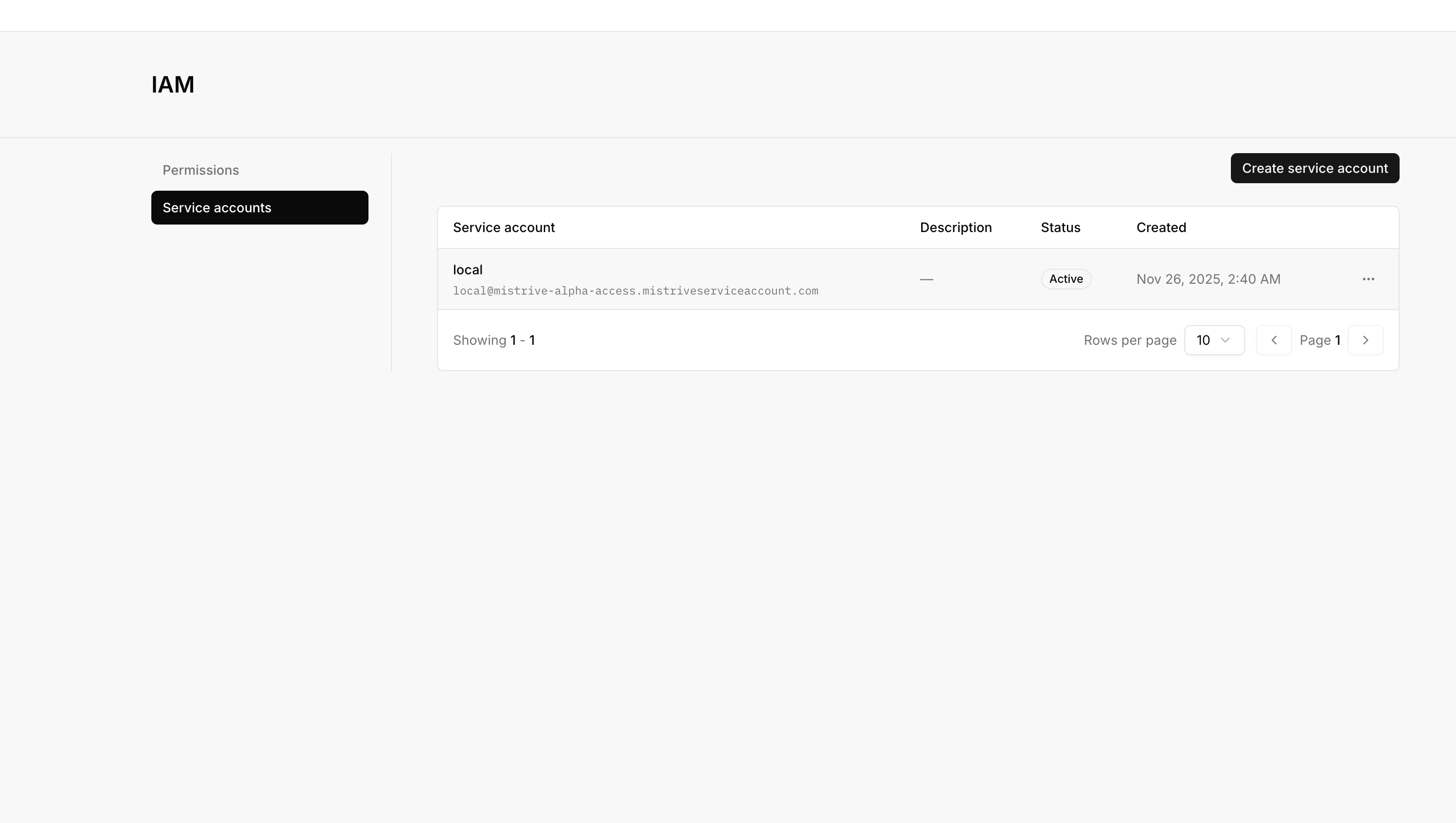
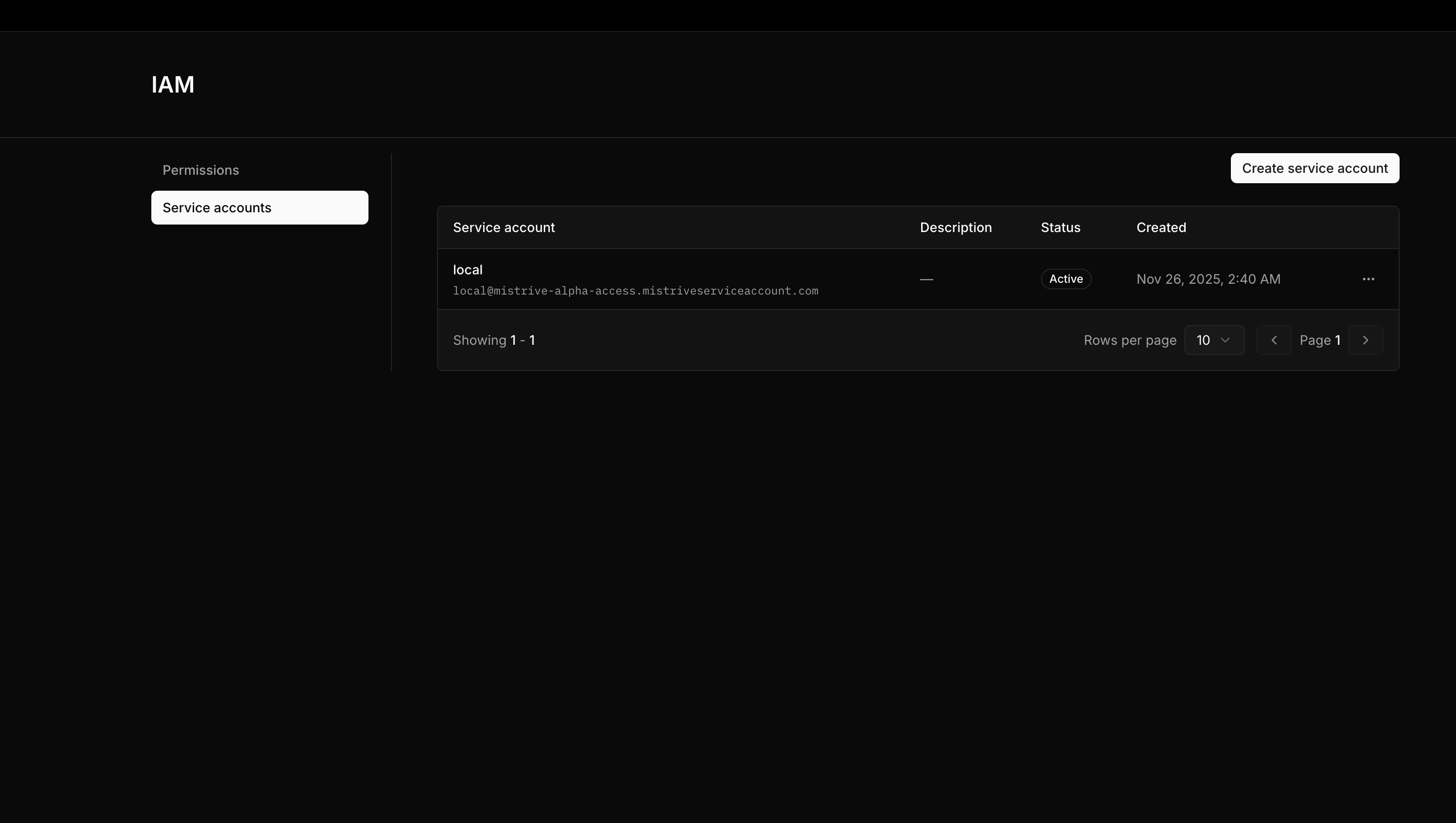 Open the service account creation form.
Provide an ID (this becomes part of the service account's email-like identifier) and a display name. Optionally add a description.
Submit the form. The new service account appears in the list.
The service account identifier follows the format:
```
{service_account_id}@{project_id}.mistriveserviceaccount.com
```
## Managing keys
Service accounts authenticate using keys. Each service account can have multiple active keys, allowing you to rotate credentials without downtime.
### Creating a key
From the service account's detail page, select **Create Key**.
Open the service account creation form.
Provide an ID (this becomes part of the service account's email-like identifier) and a display name. Optionally add a description.
Submit the form. The new service account appears in the list.
The service account identifier follows the format:
```
{service_account_id}@{project_id}.mistriveserviceaccount.com
```
## Managing keys
Service accounts authenticate using keys. Each service account can have multiple active keys, allowing you to rotate credentials without downtime.
### Creating a key
From the service account's detail page, select **Create Key**.
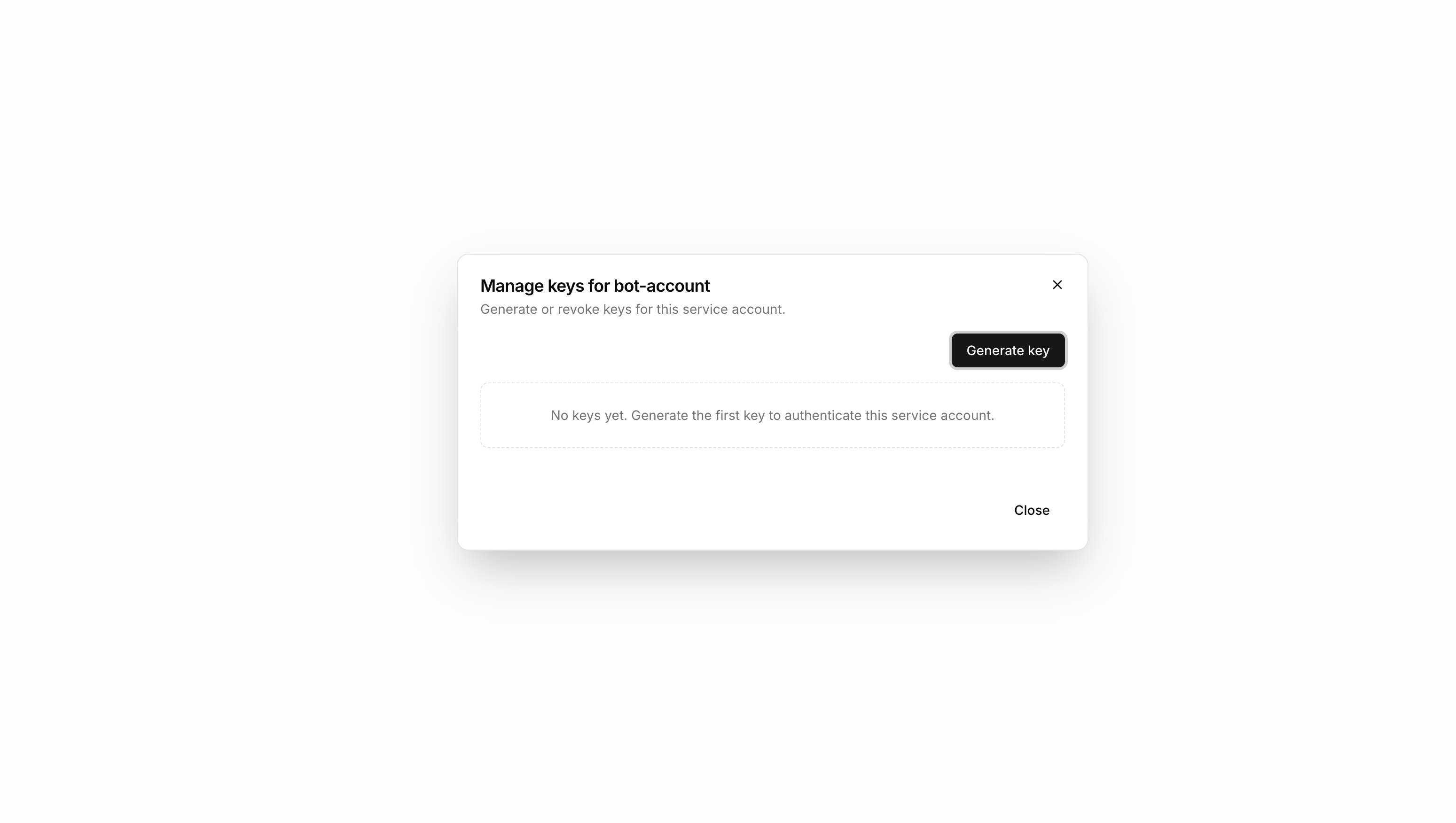
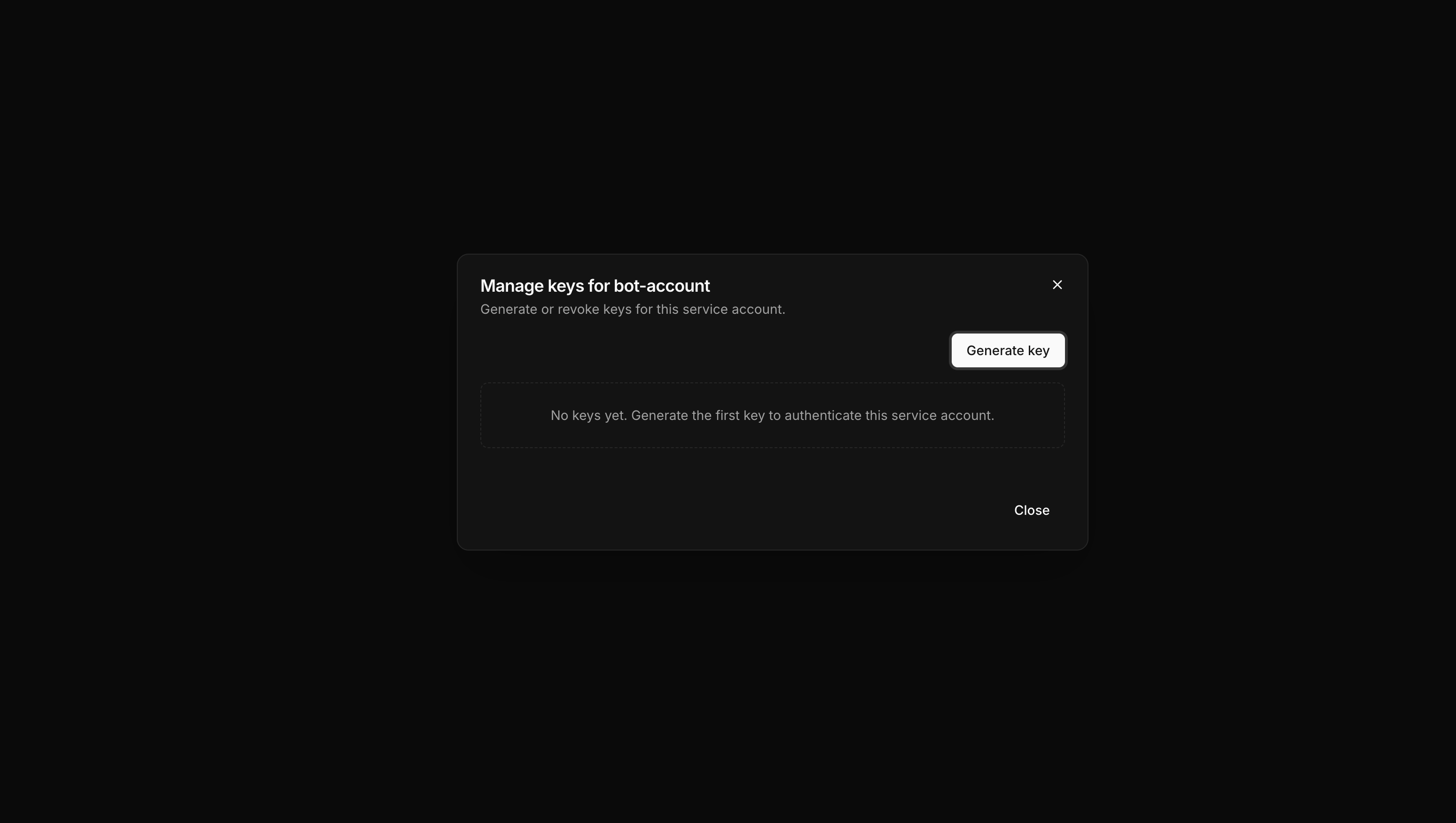 The system generates a new key pair and displays the credentials.
Download the key file immediately. This is the only time the private key is available.
The system generates a new key pair and displays the credentials.
Download the key file immediately. This is the only time the private key is available.
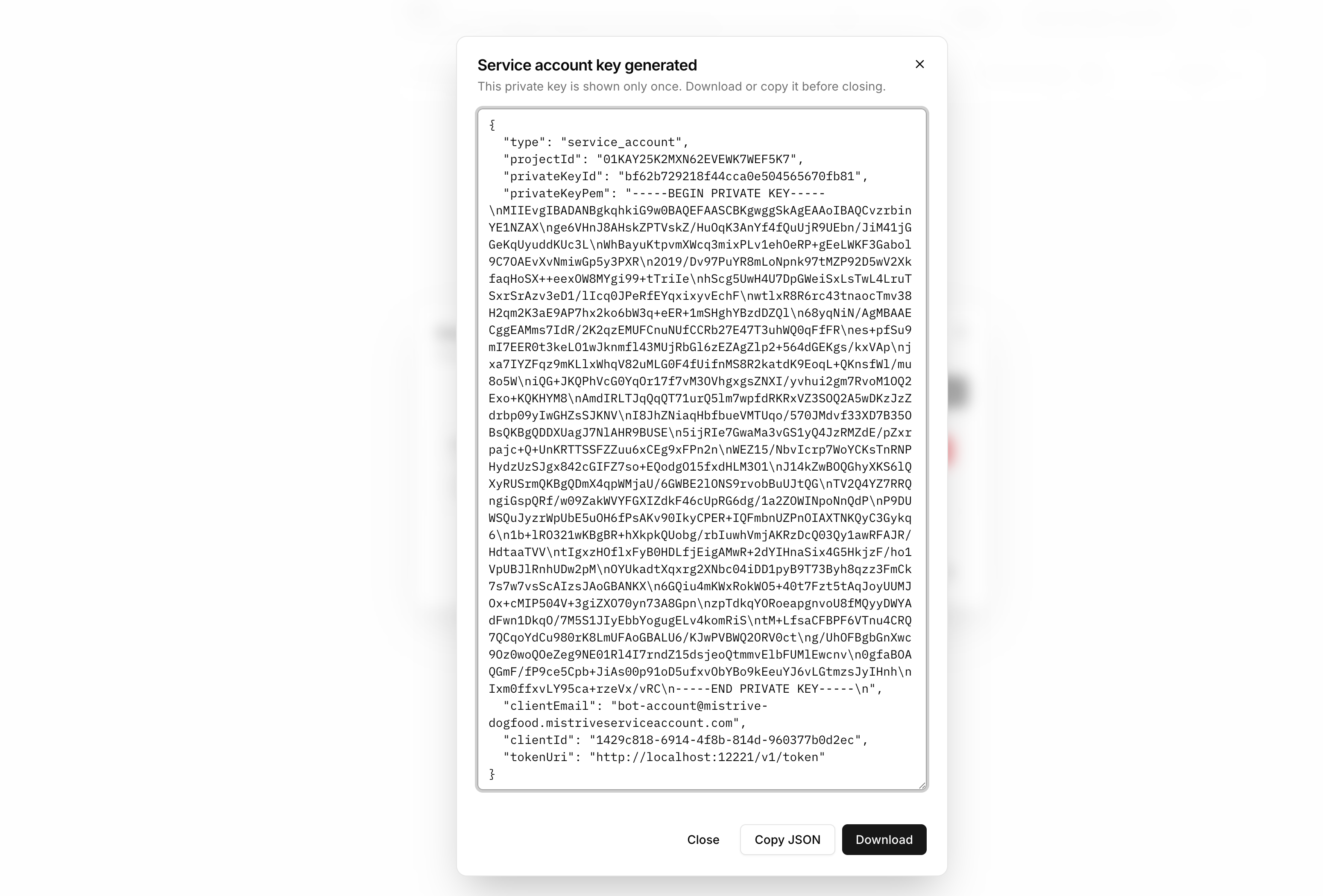
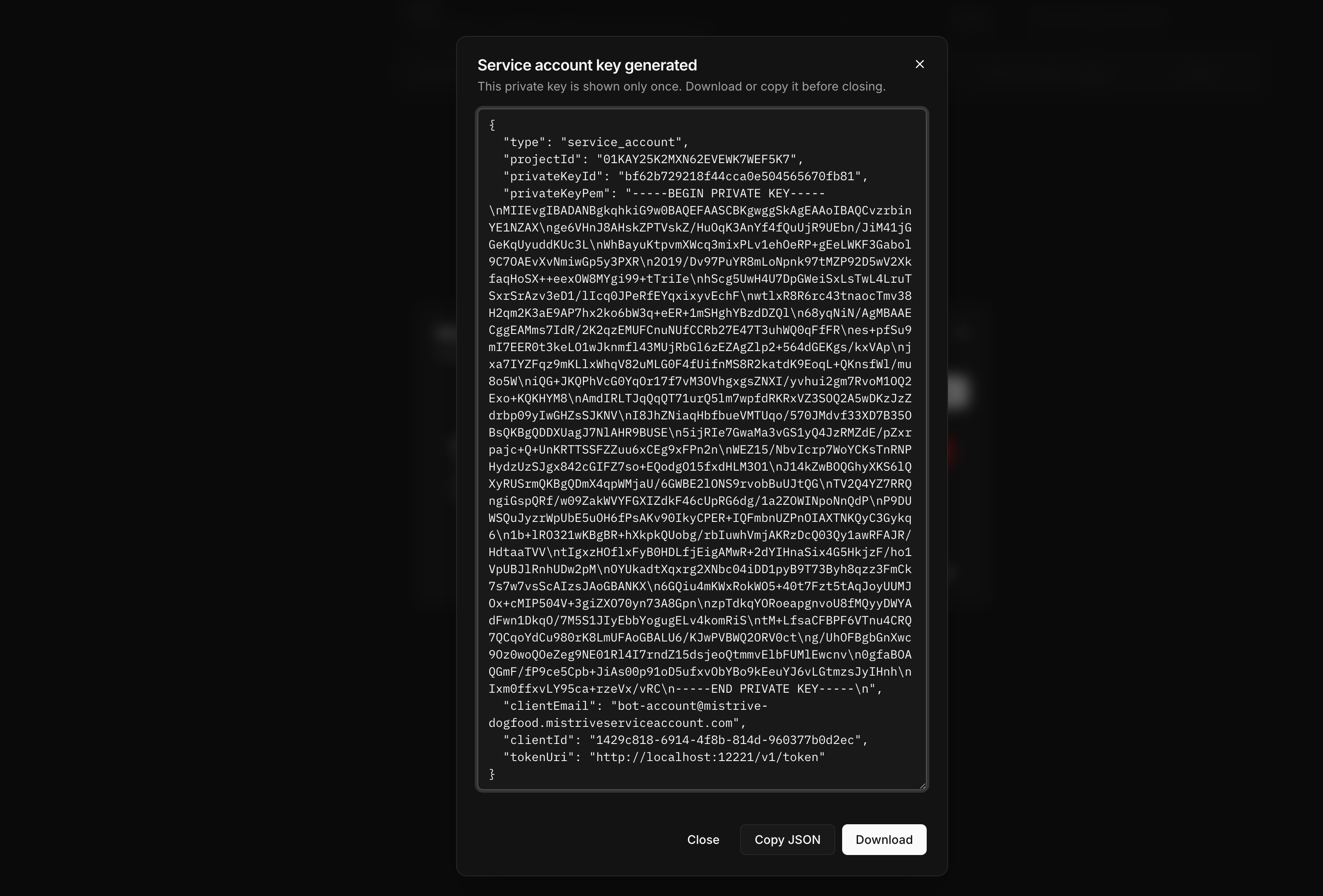 Store the key file securely. If you lose it, you'll need to create a new key—there's no way to recover the private key.
The downloaded JSON file contains everything needed to authenticate:
```json theme={null}
{
"type": "service_account",
"project_id": "my-project",
"service_account_id": "ci-pipeline",
"private_key_id": "abc123...",
"private_key": "-----BEGIN PRIVATE KEY-----\n...\n-----END PRIVATE KEY-----\n"
}
```
### Deleting a key
To revoke a key, navigate to the service account and delete the specific key from the keys list. Any systems using that key will immediately lose access.
Before deleting an old key, ensure all systems have been updated to use a new key. This prevents service disruptions during key rotation.
## Granting access
A newly created service account has no permissions. Grant access by adding it to project IAM or repository permissions.
### Project-level access
Add the service account to the project's IAM with appropriate roles. Navigate to **IAM** in your project, then add the service account identifier as a principal.
Common configurations:
| Use case | Recommended role |
| -------------------- | --------------------- |
| Pull images only | Artifact Store Viewer |
| Push and pull images | Artifact Store Editor |
| Manage repositories | Artifact Store Owner |
| Full project access | Editor or Owner |
### Repository-level access
For fine-grained control, grant access to specific repositories instead of the entire project. See [Managing repository permissions](/user-guides/artifact-store#managing-permissions) for details.
## What's next
With your service account configured:
1. [Set up Docker authentication](/user-guides/docker-authentication) to use the service account key
2. [Configure repository access](/user-guides/artifact-store#managing-permissions) for specific registries
Store the key file securely. If you lose it, you'll need to create a new key—there's no way to recover the private key.
The downloaded JSON file contains everything needed to authenticate:
```json theme={null}
{
"type": "service_account",
"project_id": "my-project",
"service_account_id": "ci-pipeline",
"private_key_id": "abc123...",
"private_key": "-----BEGIN PRIVATE KEY-----\n...\n-----END PRIVATE KEY-----\n"
}
```
### Deleting a key
To revoke a key, navigate to the service account and delete the specific key from the keys list. Any systems using that key will immediately lose access.
Before deleting an old key, ensure all systems have been updated to use a new key. This prevents service disruptions during key rotation.
## Granting access
A newly created service account has no permissions. Grant access by adding it to project IAM or repository permissions.
### Project-level access
Add the service account to the project's IAM with appropriate roles. Navigate to **IAM** in your project, then add the service account identifier as a principal.
Common configurations:
| Use case | Recommended role |
| -------------------- | --------------------- |
| Pull images only | Artifact Store Viewer |
| Push and pull images | Artifact Store Editor |
| Manage repositories | Artifact Store Owner |
| Full project access | Editor or Owner |
### Repository-level access
For fine-grained control, grant access to specific repositories instead of the entire project. See [Managing repository permissions](/user-guides/artifact-store#managing-permissions) for details.
## What's next
With your service account configured:
1. [Set up Docker authentication](/user-guides/docker-authentication) to use the service account key
2. [Configure repository access](/user-guides/artifact-store#managing-permissions) for specific registries