> ## Documentation Index
> Fetch the complete documentation index at: https://docs.mistrive.com/llms.txt
> Use this file to discover all available pages before exploring further.
# Projects
> Set up projects and configure IAM for your team
Projects organize resources within an organization. Each project has its own set of repositories, service accounts, and IAM policies. Use projects to separate environments, teams, or applications.
## Creating a project
Creating a project requires the **Owner** role on the parent organization.
From your organization's page, select **Create Project**.
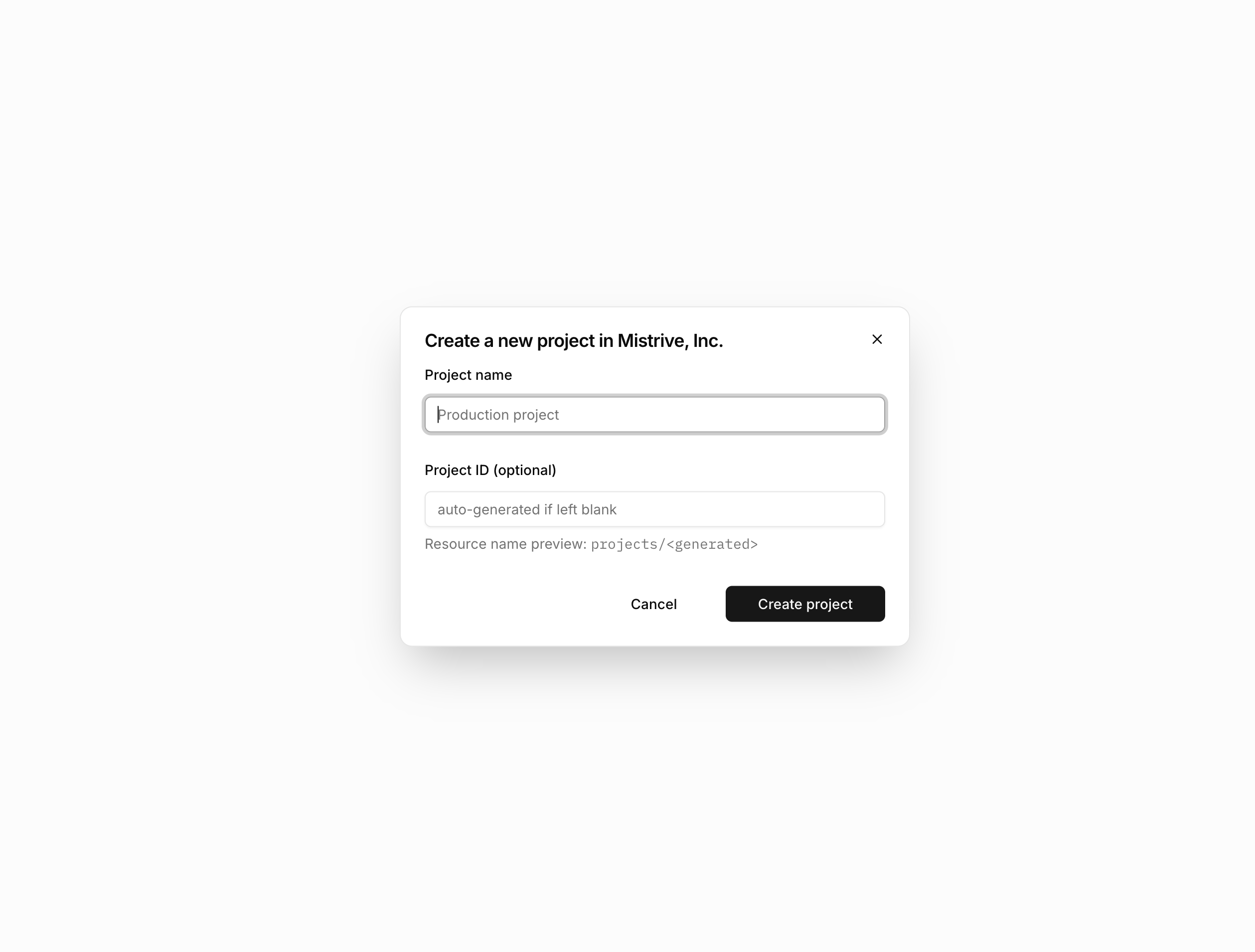
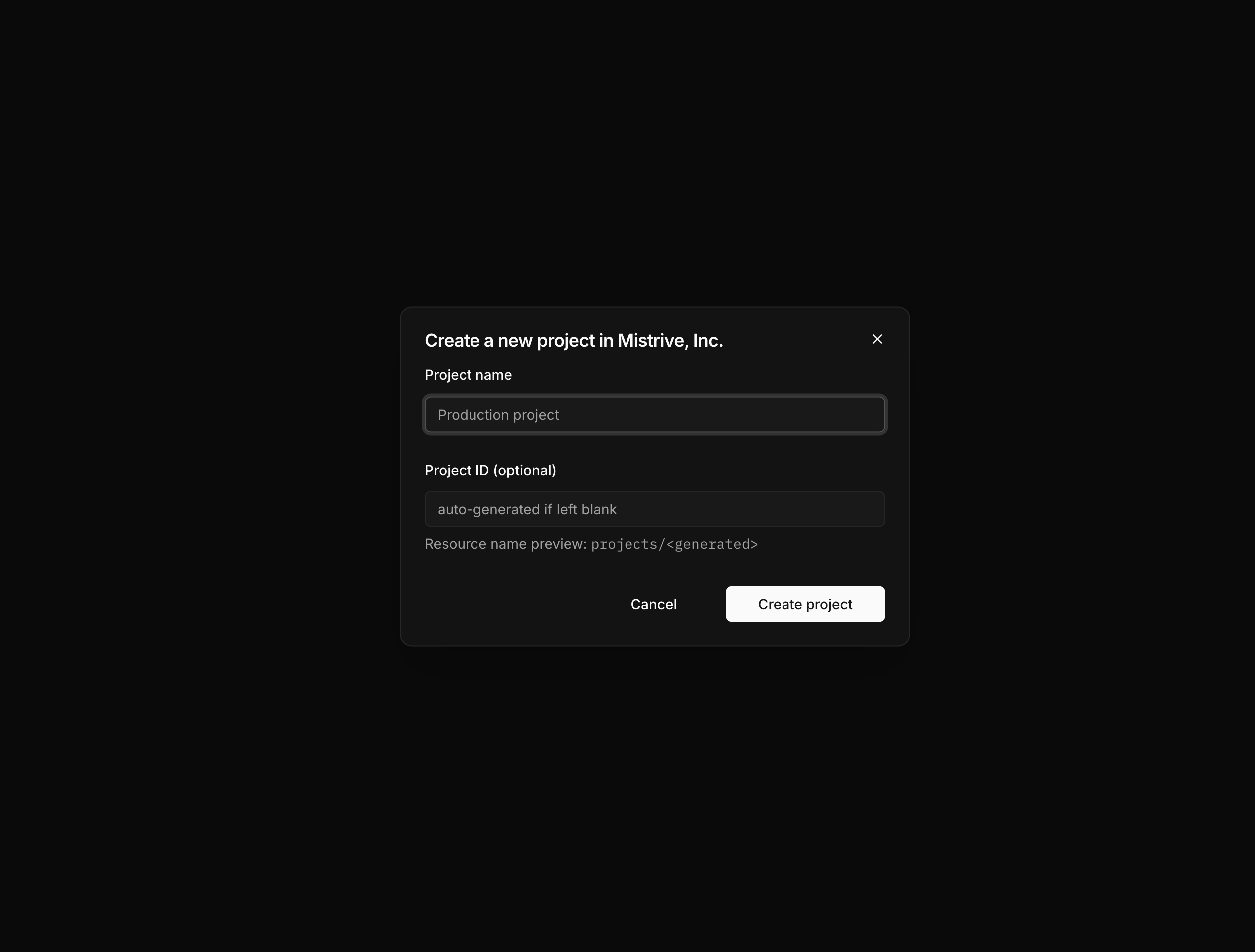 Provide a display name. Optionally specify a custom ID—if omitted, the system generates one automatically.
Submit the form. You're redirected to the new project's overview page.
## Project roles
Projects support both general roles and Artifact Store-specific roles. Assign roles based on what each principal needs to do.
### General roles
| Role | Description |
| ---------- | ------------------------------------------- |
| **Viewer** | Read-only access to project resources. |
| **Editor** | Read and write access to project resources. |
| **Owner** | Full access including IAM management. |
### Artifact Store roles
These roles provide access specifically to Artifact Store repositories without granting broader project permissions.
| Role | Description |
| ------------------------- | ---------------------------------------------------------------- |
| **Artifact Store Viewer** | Read-only access to all repositories in the project. |
| **Artifact Store Editor** | Read and write access to all repositories in the project. |
| **Artifact Store Owner** | Full access to all repositories including permission management. |
## Managing project IAM
Control who can access your project and its resources through the IAM page.
Navigate to your project and open **IAM** from the sidebar.
Provide a display name. Optionally specify a custom ID—if omitted, the system generates one automatically.
Submit the form. You're redirected to the new project's overview page.
## Project roles
Projects support both general roles and Artifact Store-specific roles. Assign roles based on what each principal needs to do.
### General roles
| Role | Description |
| ---------- | ------------------------------------------- |
| **Viewer** | Read-only access to project resources. |
| **Editor** | Read and write access to project resources. |
| **Owner** | Full access including IAM management. |
### Artifact Store roles
These roles provide access specifically to Artifact Store repositories without granting broader project permissions.
| Role | Description |
| ------------------------- | ---------------------------------------------------------------- |
| **Artifact Store Viewer** | Read-only access to all repositories in the project. |
| **Artifact Store Editor** | Read and write access to all repositories in the project. |
| **Artifact Store Owner** | Full access to all repositories including permission management. |
## Managing project IAM
Control who can access your project and its resources through the IAM page.
Navigate to your project and open **IAM** from the sidebar.
 ### Adding a principal
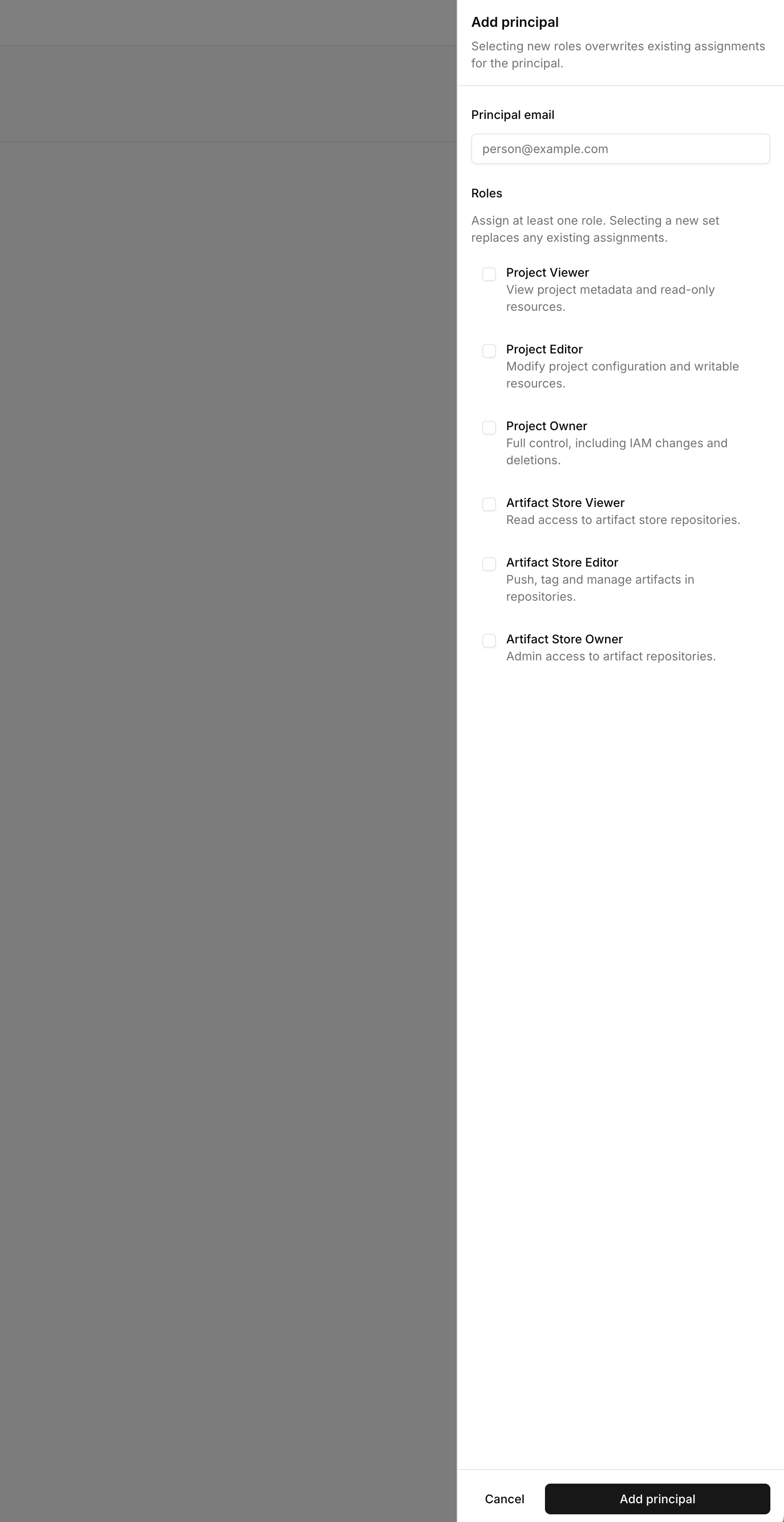
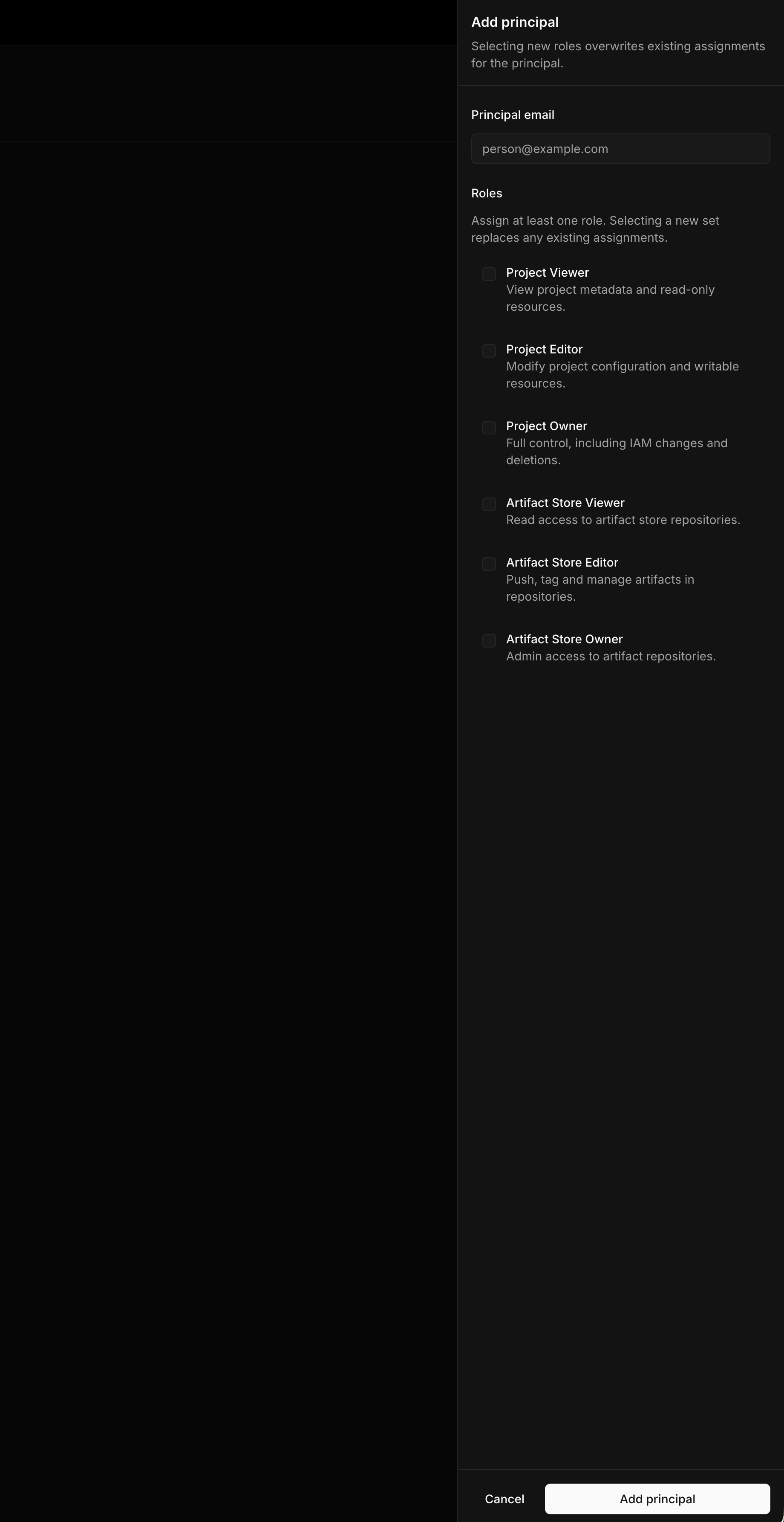
Open the IAM management interface.
Provide the user's email address or the service account's identifier.
Choose one or more roles to grant. You can assign both general and Artifact Store roles to the same principal.
Save the IAM binding. The principal can now access the project according to their assigned roles.
### Removing a principal
From the IAM page, locate the principal and remove their role assignments. This revokes their project-level access but does not affect any organization-level roles they may have.
## Role inheritance
Permissions flow down from organizations to projects:
* An **Organization Owner** automatically has Owner access to all projects
* An **Organization Editor** automatically has Editor access to all projects
* An **Organization Viewer** automatically has Viewer access to all projects
The same inheritance applies to Artifact Store roles. An organization-level Artifact Store Editor can push to repositories in any project within that organization.
For more details on how permissions cascade, see [Permissions](/user-guides/permissions).
## What's next
With your project configured:
1. [Create service accounts](/user-guides/service-accounts) for automated access
2. [Set up repositories](/user-guides/artifact-store) in the Artifact Store
### Adding a principal
Open the IAM management interface.
Provide the user's email address or the service account's identifier.
Choose one or more roles to grant. You can assign both general and Artifact Store roles to the same principal.
Save the IAM binding. The principal can now access the project according to their assigned roles.
### Removing a principal
From the IAM page, locate the principal and remove their role assignments. This revokes their project-level access but does not affect any organization-level roles they may have.
## Role inheritance
Permissions flow down from organizations to projects:
* An **Organization Owner** automatically has Owner access to all projects
* An **Organization Editor** automatically has Editor access to all projects
* An **Organization Viewer** automatically has Viewer access to all projects
The same inheritance applies to Artifact Store roles. An organization-level Artifact Store Editor can push to repositories in any project within that organization.
For more details on how permissions cascade, see [Permissions](/user-guides/permissions).
## What's next
With your project configured:
1. [Create service accounts](/user-guides/service-accounts) for automated access
2. [Set up repositories](/user-guides/artifact-store) in the Artifact Store