> ## Documentation Index
> Fetch the complete documentation index at: https://docs.mistrive.com/llms.txt
> Use this file to discover all available pages before exploring further.
# Organizations
> Create organizations and manage member access
Organizations are the top-level containers in Mistrive. They group projects together and provide a boundary for access control. Every project belongs to an organization.
## Creating an organization
Only global administrators can create organizations.
Navigate to **Global Settings → Organizations** and select **Create Organization**.
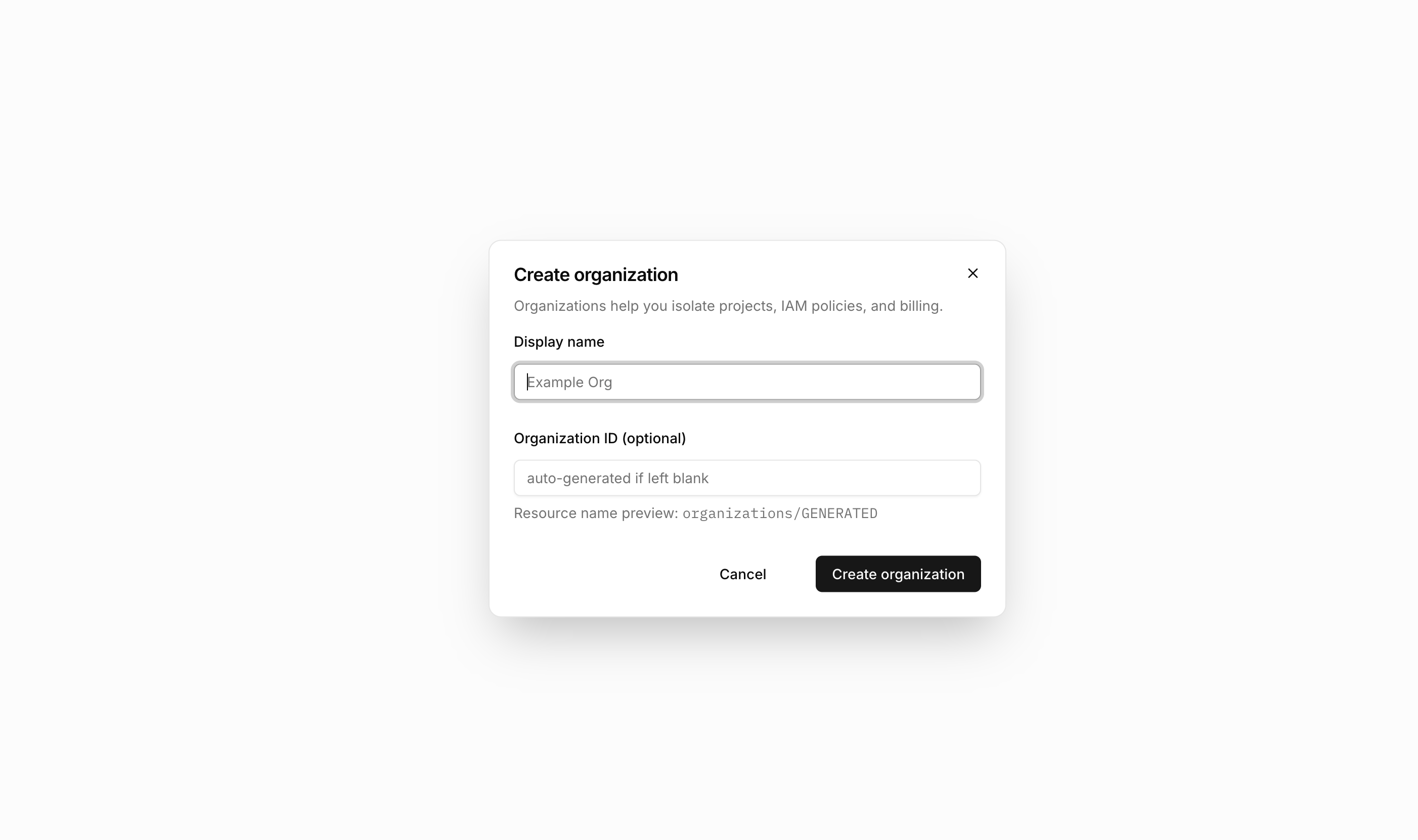
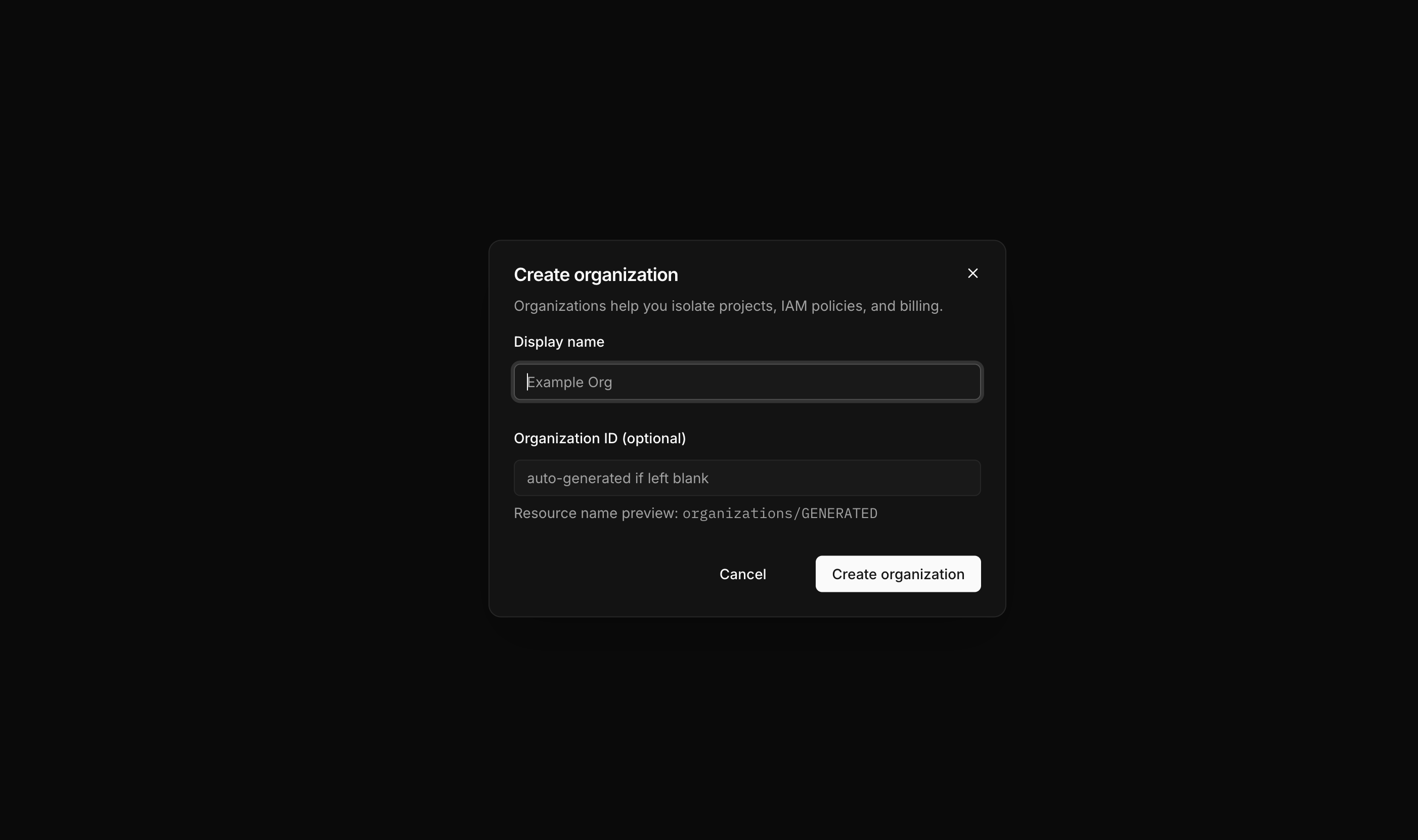 Provide a display name for the organization. Optionally specify a custom ID—if omitted, the system generates one automatically.
Submit the form. The new organization appears in your organizations list.
## Organization roles
When you add a member to an organization, you assign them one of four roles. Each role grants different levels of access to the organization's projects.
| Role | Description |
| ---------- | -------------------------------------------------------------------------------------------------------------- |
| **Member** | Can access the organization but has no implicit access to projects. Must be granted project access separately. |
| **Viewer** | Read-only access to all projects in the organization. |
| **Editor** | Read and write access to all projects in the organization. |
| **Owner** | Full access including the ability to manage projects and organization settings. |
Roles inherit upward: an Owner automatically has Editor permissions, an Editor automatically has Viewer permissions, and all roles include Member status.
## Adding members
Add users to your organization from the organization settings page.
Navigate to your organization and open **Settings**. Select **Add Member** to open the member drawer.
Provide a display name for the organization. Optionally specify a custom ID—if omitted, the system generates one automatically.
Submit the form. The new organization appears in your organizations list.
## Organization roles
When you add a member to an organization, you assign them one of four roles. Each role grants different levels of access to the organization's projects.
| Role | Description |
| ---------- | -------------------------------------------------------------------------------------------------------------- |
| **Member** | Can access the organization but has no implicit access to projects. Must be granted project access separately. |
| **Viewer** | Read-only access to all projects in the organization. |
| **Editor** | Read and write access to all projects in the organization. |
| **Owner** | Full access including the ability to manage projects and organization settings. |
Roles inherit upward: an Owner automatically has Editor permissions, an Editor automatically has Viewer permissions, and all roles include Member status.
## Adding members
Add users to your organization from the organization settings page.
Navigate to your organization and open **Settings**. Select **Add Member** to open the member drawer.

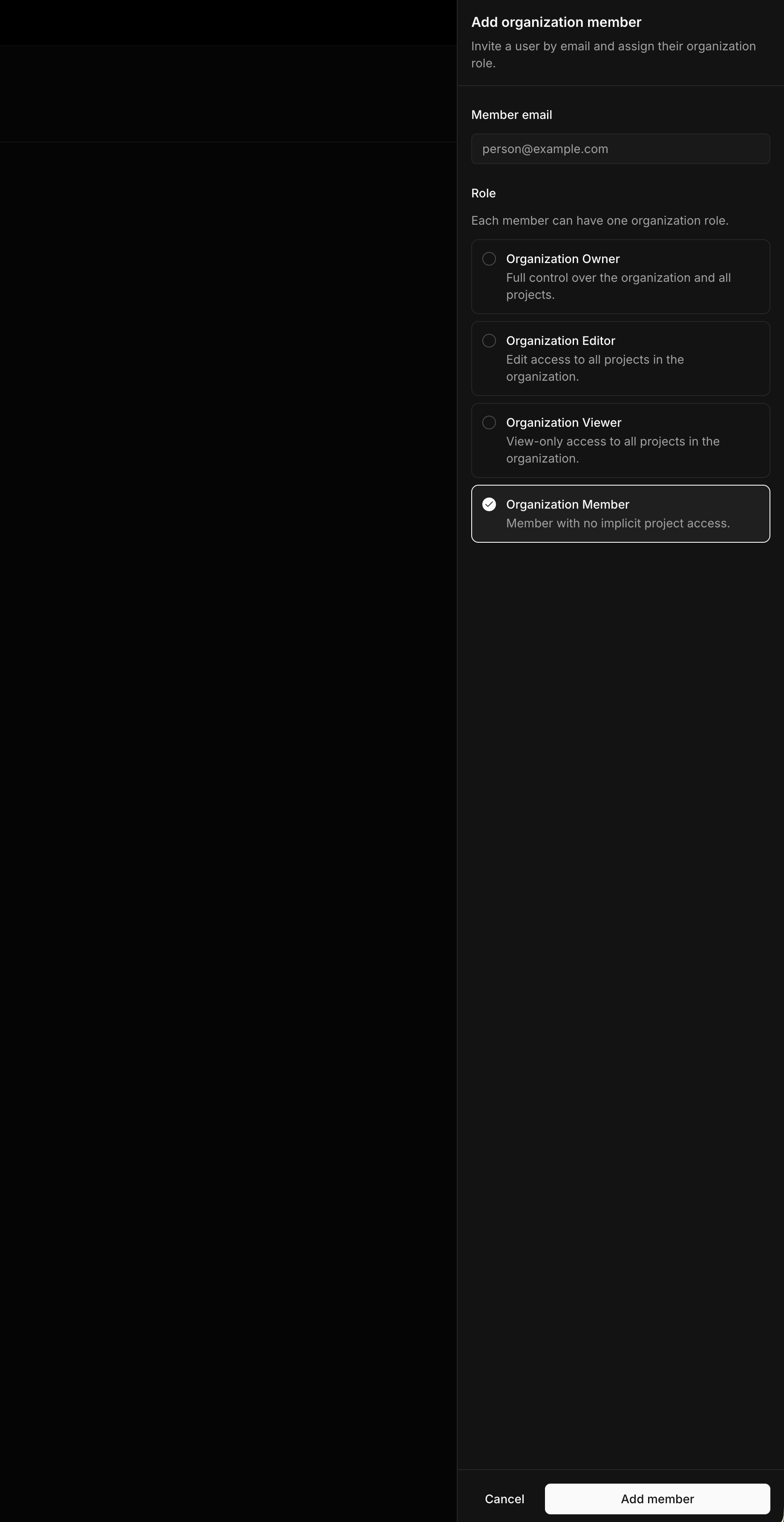 Type the email address of the user you want to add. The user must already exist in the system.
Choose the appropriate role based on what access the user needs.
Confirm to add the user to the organization.
## Removing members
From the organization settings, locate the member in the list and select the remove option. This revokes their organization membership and any access inherited from organization-level roles.
Removing a member from an organization does not delete their user account. They can still be added back later or remain a member of other organizations.
## What's next
Once you have an organization set up with members:
1. [Create projects](/user-guides/projects) within the organization
2. [Configure project-level IAM](/user-guides/projects#managing-project-iam) for fine-grained access control
Type the email address of the user you want to add. The user must already exist in the system.
Choose the appropriate role based on what access the user needs.
Confirm to add the user to the organization.
## Removing members
From the organization settings, locate the member in the list and select the remove option. This revokes their organization membership and any access inherited from organization-level roles.
Removing a member from an organization does not delete their user account. They can still be added back later or remain a member of other organizations.
## What's next
Once you have an organization set up with members:
1. [Create projects](/user-guides/projects) within the organization
2. [Configure project-level IAM](/user-guides/projects#managing-project-iam) for fine-grained access control