> ## Documentation Index
> Fetch the complete documentation index at: https://docs.mistrive.com/llms.txt
> Use this file to discover all available pages before exploring further.
# Artifact Store
> Manage repositories, images, and vulnerability scanning
The Artifact Store provides a container registry for Docker and OCI images. Each project can have multiple repositories, and each repository stores images with their tags and digests.
## Creating a repository
Creating a repository requires the **Artifact Store Owner** role on the project (or equivalent inherited permissions).
Navigate to your project and open **Artifact Store**. Select **Create Repository**.
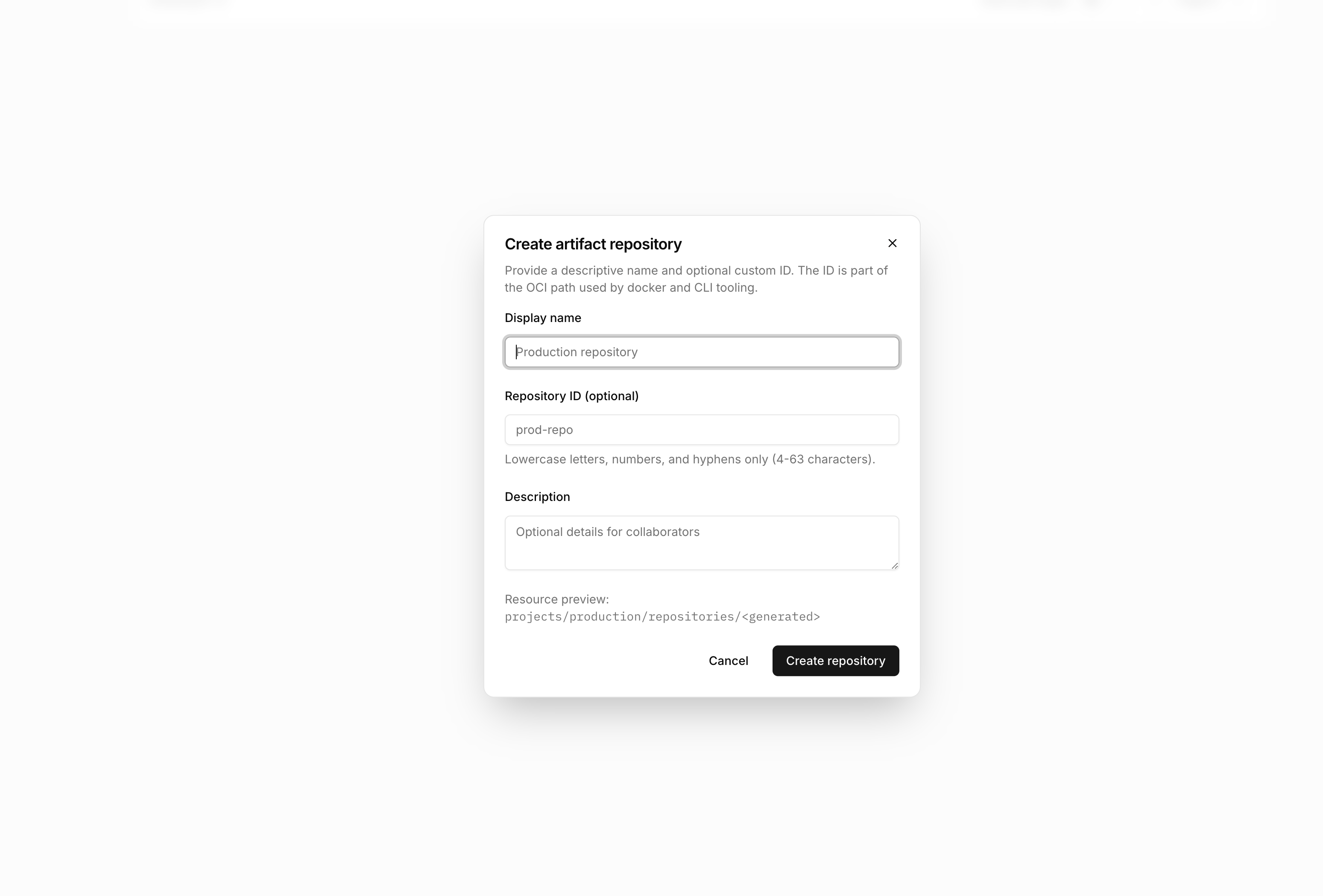
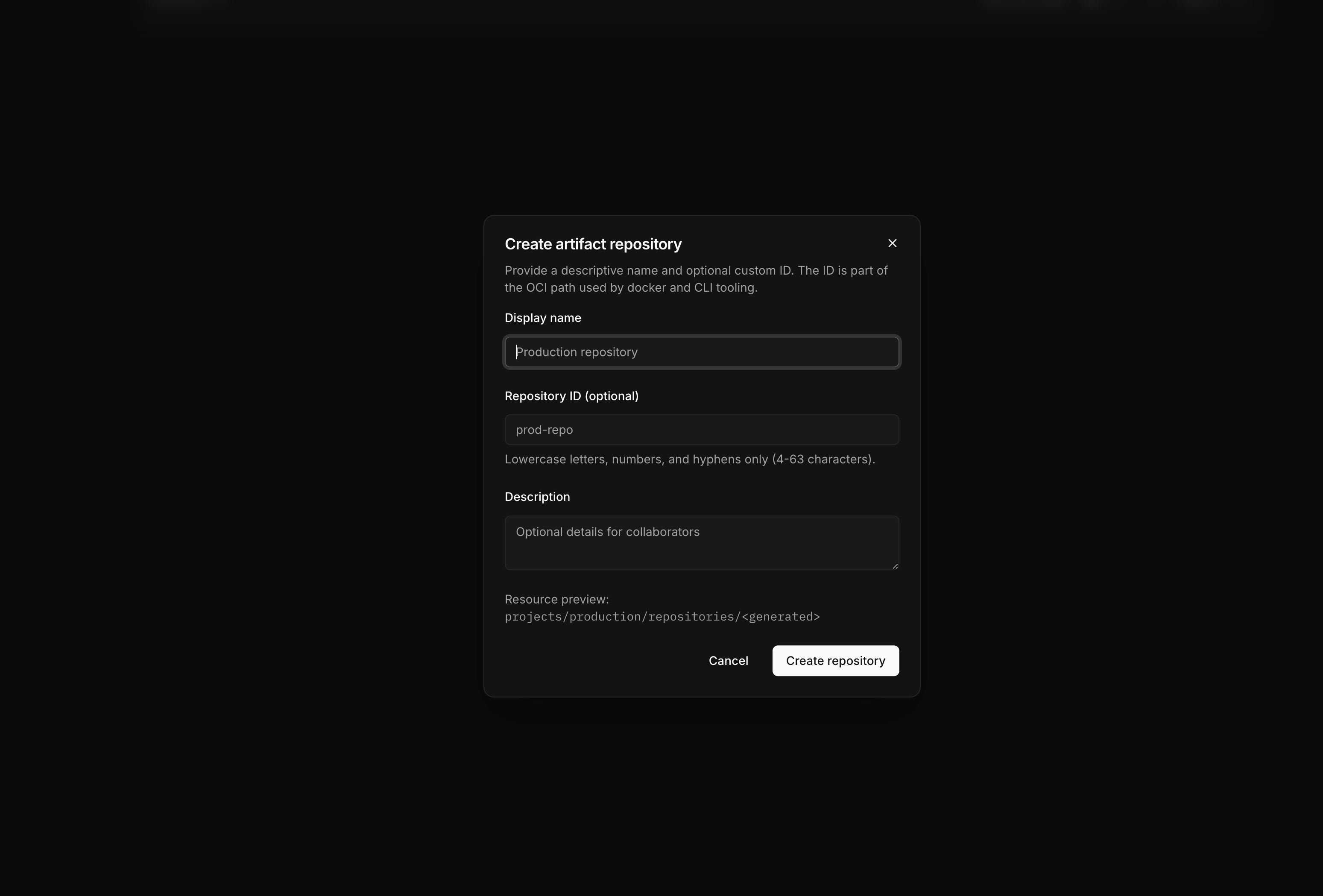 Provide a display name. Optionally specify a custom ID—if omitted, the system generates one automatically.
Enable vulnerability scanning if you want automatic security analysis of pushed images.
Submit the form. The new repository is ready to receive images.
## Browsing images
Open a repository to view its contents. The image list shows all OCI images stored in the repository.
Provide a display name. Optionally specify a custom ID—if omitted, the system generates one automatically.
Enable vulnerability scanning if you want automatic security analysis of pushed images.
Submit the form. The new repository is ready to receive images.
## Browsing images
Open a repository to view its contents. The image list shows all OCI images stored in the repository.
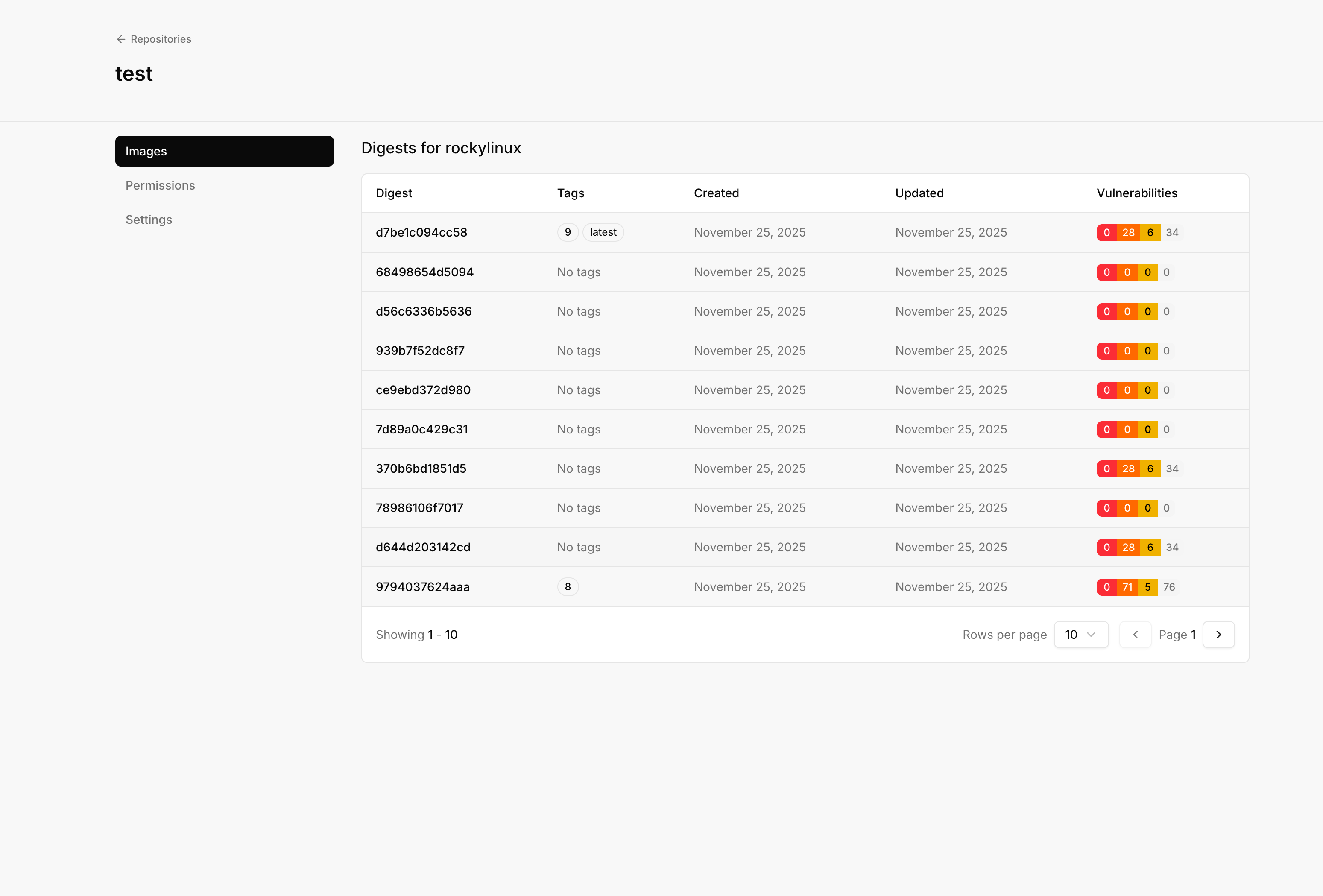
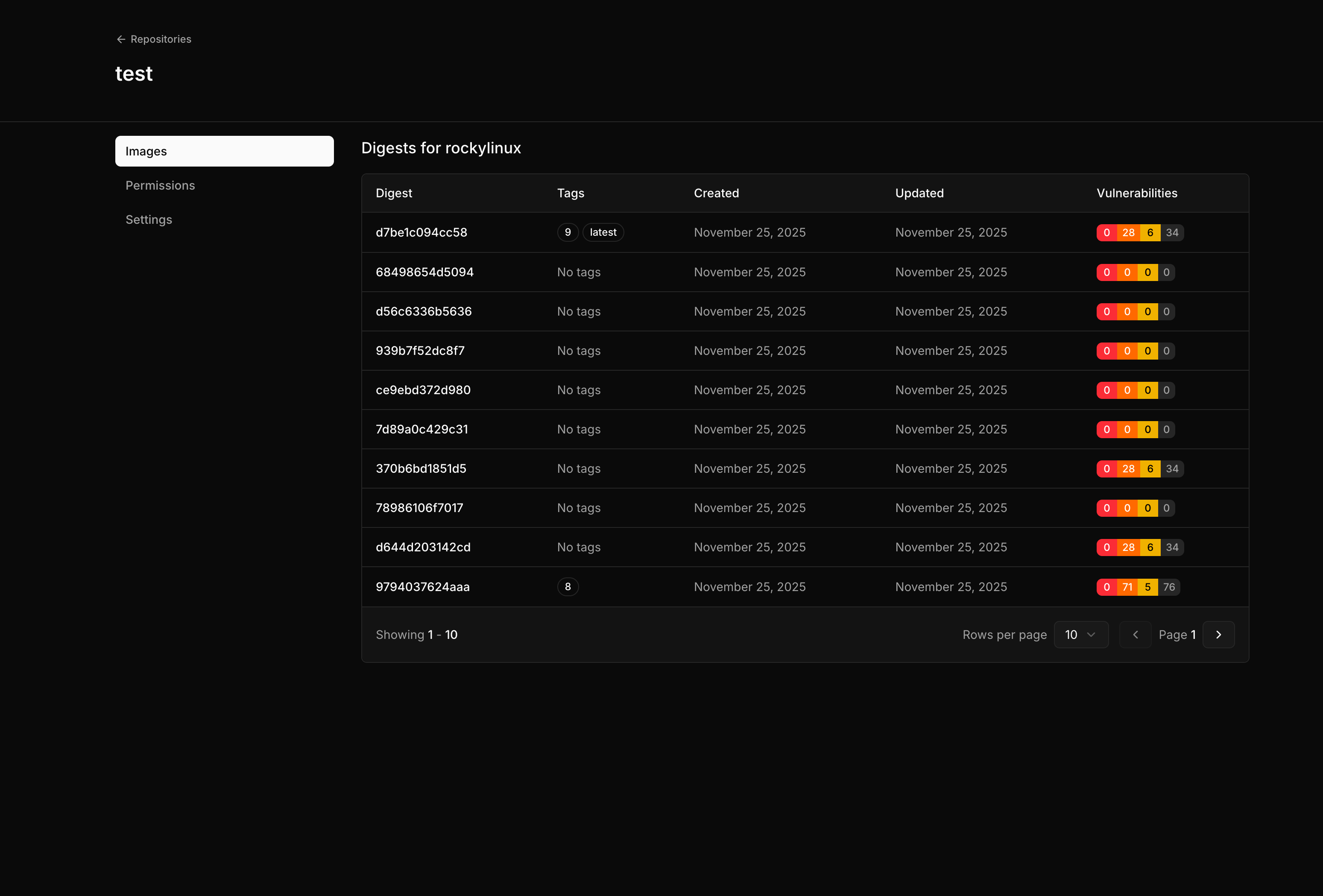 Select an image to view its digests. Each digest represents a unique image version, and tags point to specific digests.
The digest view displays:
* **Tags** pointing to this digest
* **Size** of the image
* **Created time**
* **Vulnerability summary** (if scanning is enabled)
## Vulnerability scanning
When enabled, the Artifact Store automatically scans pushed images for known vulnerabilities using Trivy.
### Enabling scanning
Scanning is configured per repository. When creating a repository, enable the scanning option. For existing repositories, edit the repository settings to toggle scanning.
### Viewing scan results
Navigate to a specific image digest to view its vulnerability report.
Select an image to view its digests. Each digest represents a unique image version, and tags point to specific digests.
The digest view displays:
* **Tags** pointing to this digest
* **Size** of the image
* **Created time**
* **Vulnerability summary** (if scanning is enabled)
## Vulnerability scanning
When enabled, the Artifact Store automatically scans pushed images for known vulnerabilities using Trivy.
### Enabling scanning
Scanning is configured per repository. When creating a repository, enable the scanning option. For existing repositories, edit the repository settings to toggle scanning.
### Viewing scan results
Navigate to a specific image digest to view its vulnerability report.
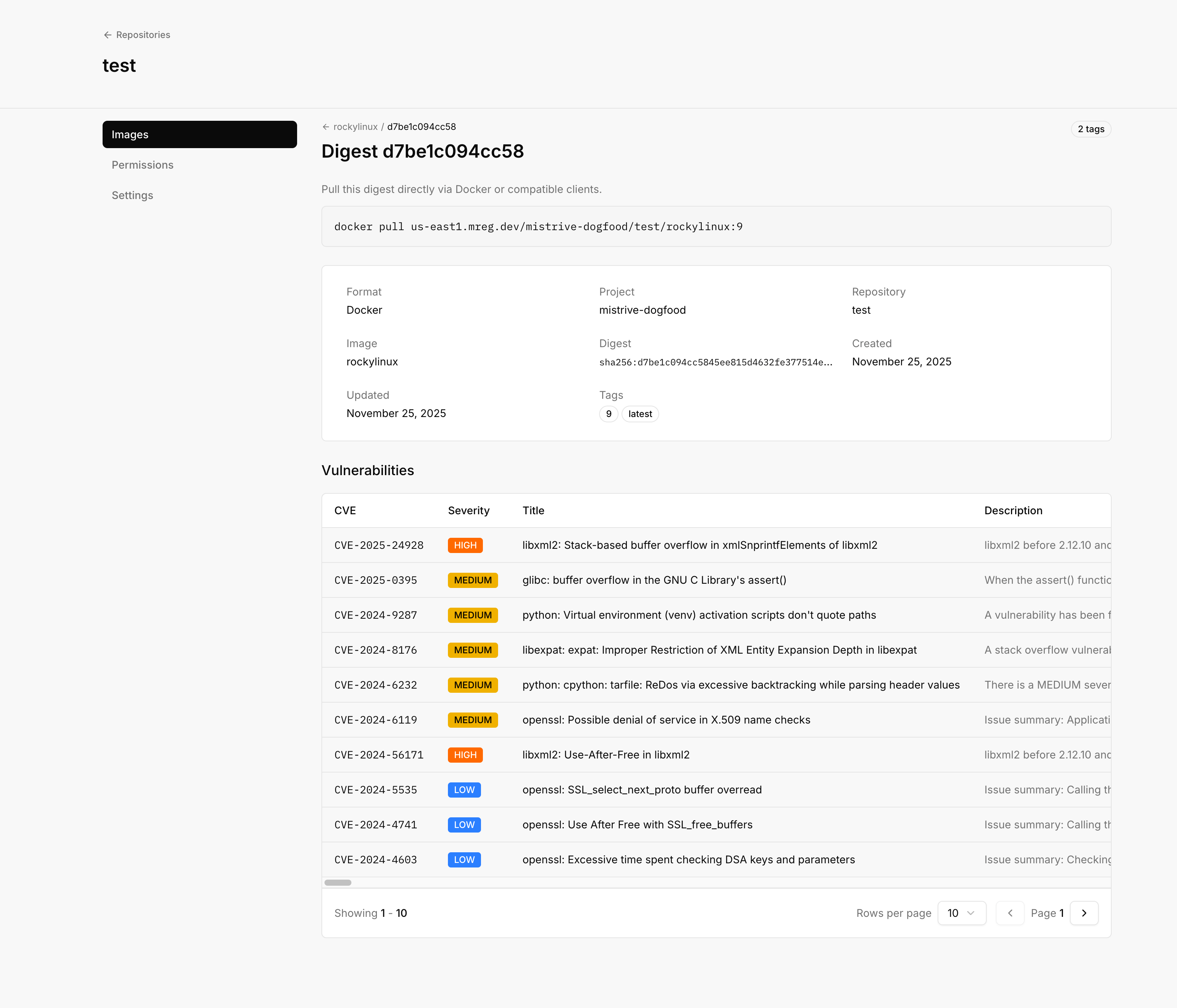
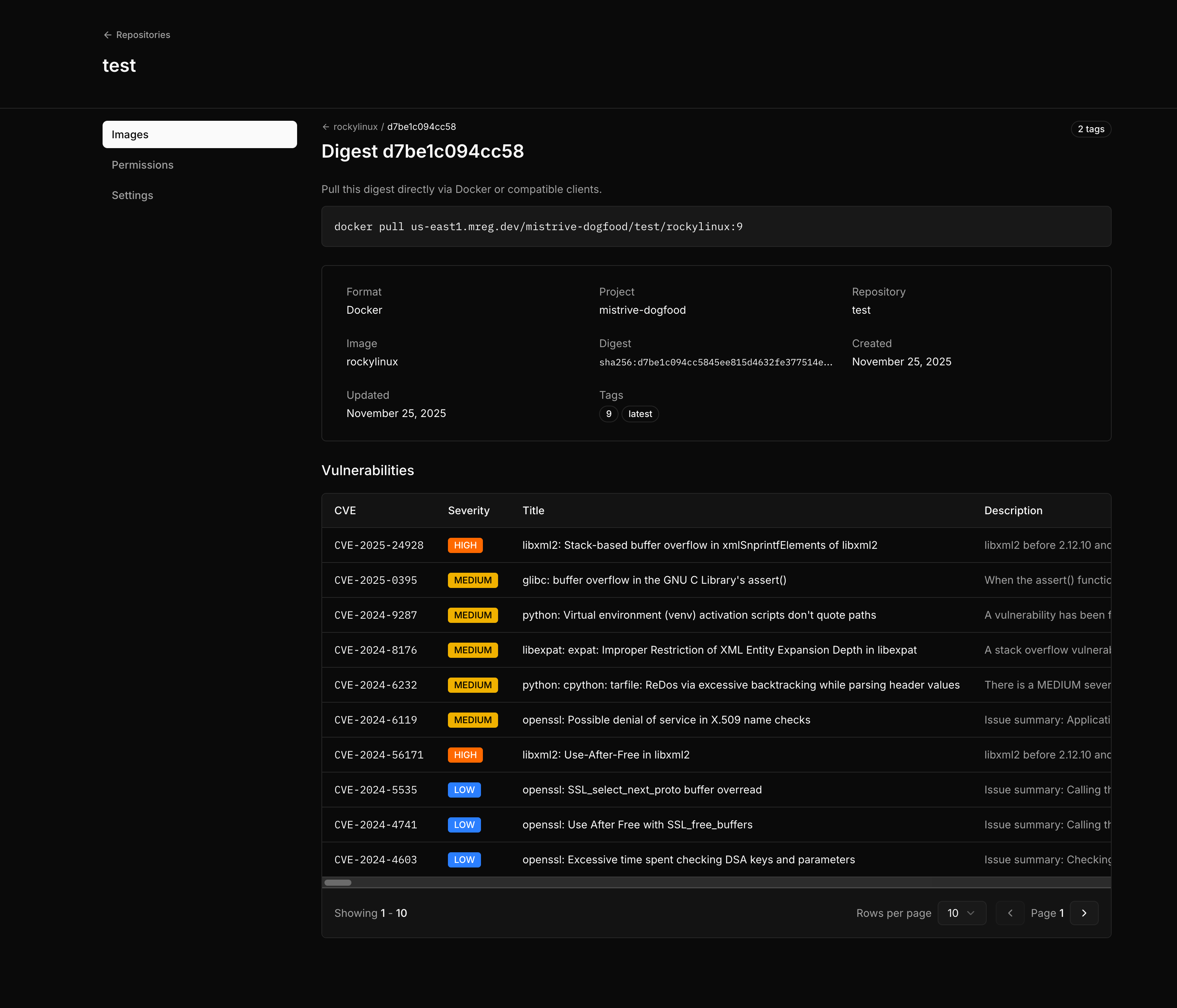 The scan results show:
| Severity | Description |
| --------------- | ----------------------------------------------------------- |
| **Critical** | Severe vulnerabilities requiring immediate attention |
| **High/Medium** | Significant vulnerabilities to address in your update cycle |
| **Low/Unknown** | Minor issues or vulnerabilities with undetermined severity |
Each vulnerability entry includes the CVE identifier, title, and description.
Scans run automatically when images are pushed. For recently pushed images, allow a few minutes for the scan to complete.
## Managing permissions
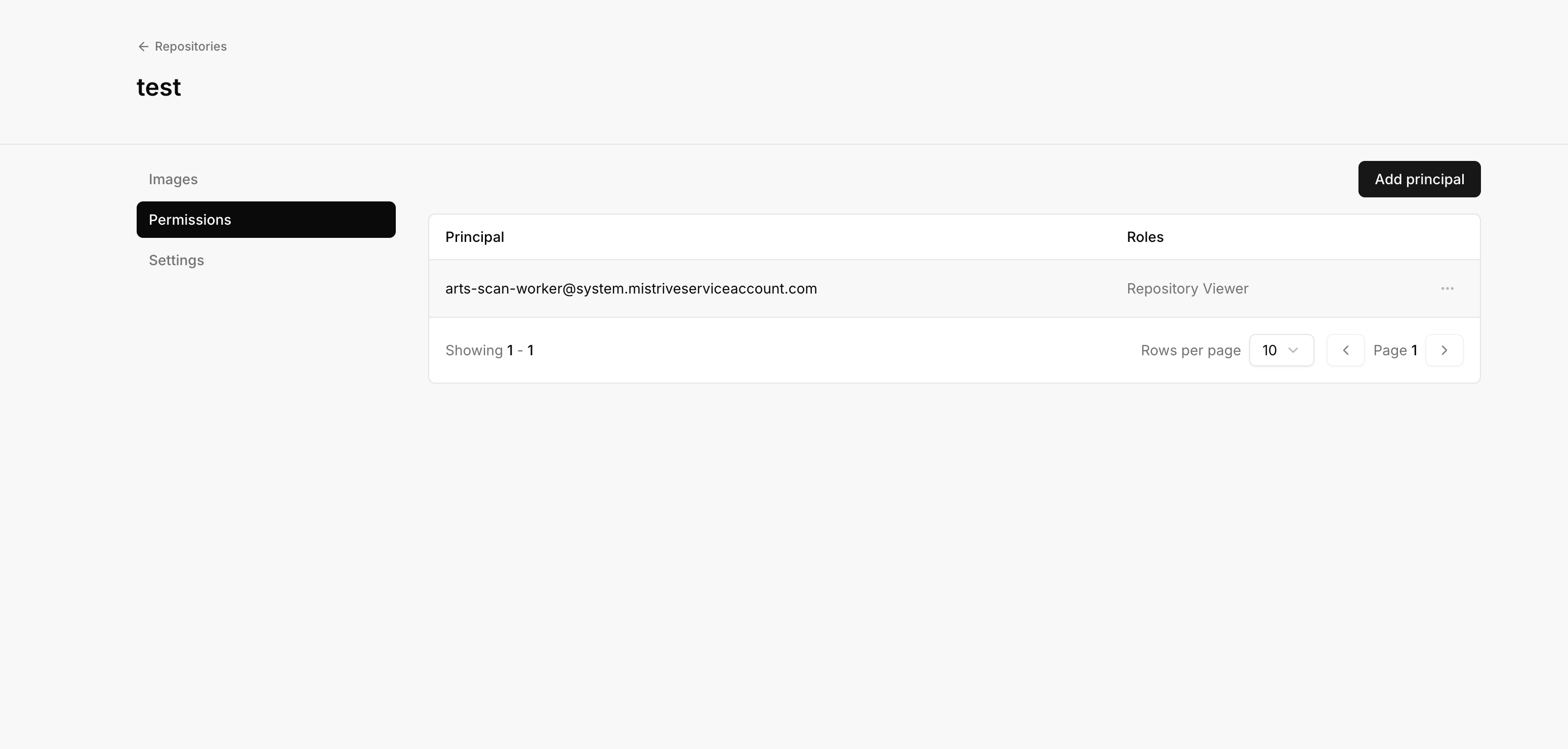
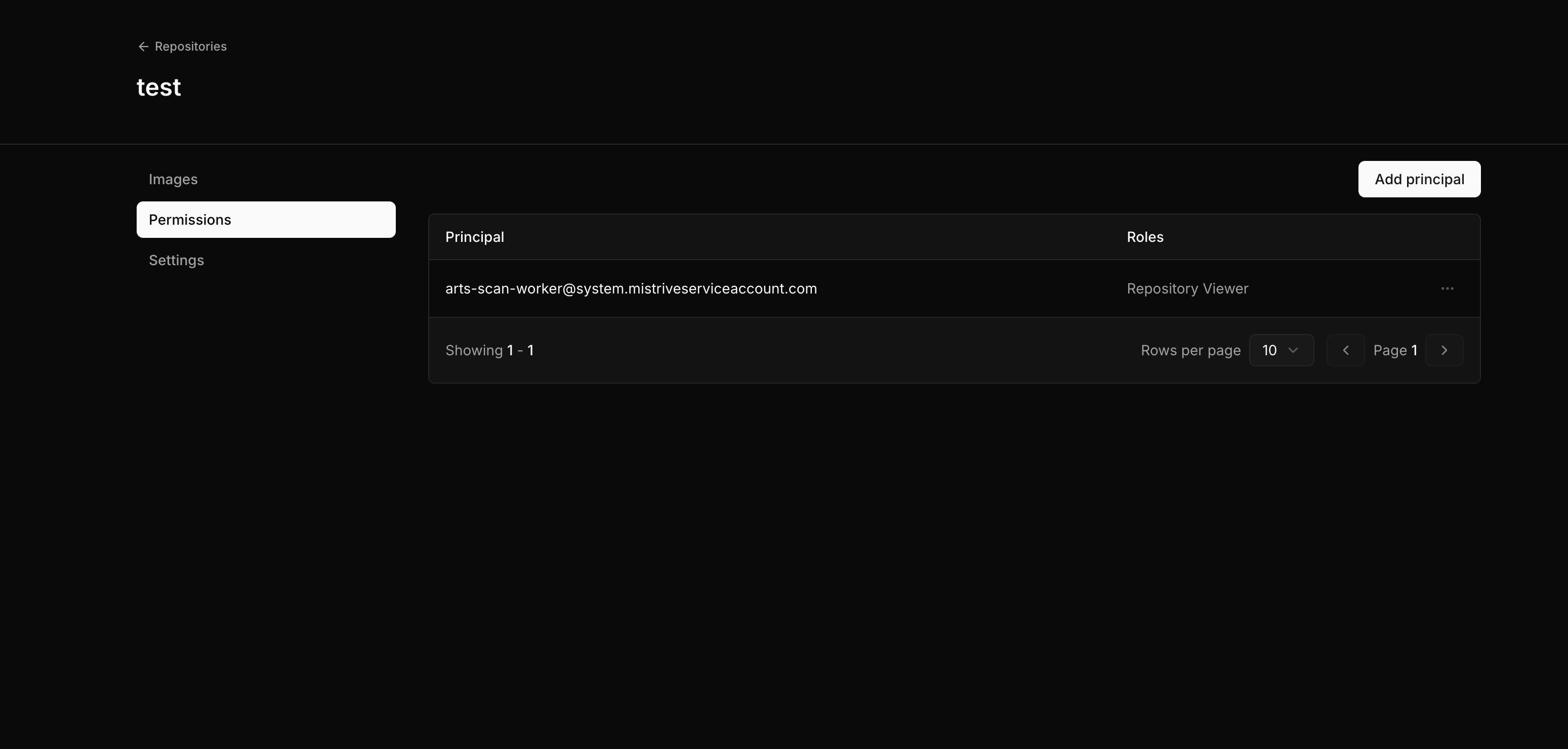
Repository permissions control who can view, push, or manage images. Permissions can be granted to specific users, service accounts, or special principals.
Navigate to your repository and open the **Permissions** tab.
The scan results show:
| Severity | Description |
| --------------- | ----------------------------------------------------------- |
| **Critical** | Severe vulnerabilities requiring immediate attention |
| **High/Medium** | Significant vulnerabilities to address in your update cycle |
| **Low/Unknown** | Minor issues or vulnerabilities with undetermined severity |
Each vulnerability entry includes the CVE identifier, title, and description.
Scans run automatically when images are pushed. For recently pushed images, allow a few minutes for the scan to complete.
## Managing permissions
Repository permissions control who can view, push, or manage images. Permissions can be granted to specific users, service accounts, or special principals.
Navigate to your repository and open the **Permissions** tab.
 ### Repository roles
| Role | Capabilities |
| ---------- | ------------------------------------------- |
| **Viewer** | Pull images |
| **Editor** | Pull and push images |
| **Owner** | Full access including permission management |
### Adding a principal
Open the permission management interface.
Use an email address for users, a service account identifier, or a special principal.
Choose Viewer, Editor, or Owner based on the access level needed.
The principal can now access the repository according to their role.
### Special principals
The Artifact Store supports two special principals for public or semi-public access:
| Principal | Description |
| ----------------------- | --------------------------------------------------------------------------- |
| `allUsers` | Anyone, including unauthenticated users. Use for fully public repositories. |
| `allAuthenticatedUsers` | Any authenticated user in your Mistrive instance. |
Special principals can only be granted the **Viewer** role. This ensures public repositories remain read-only.
### Permission inheritance
Repository permissions inherit from the project hierarchy:
* A principal with **Artifact Store Viewer** on the project can pull from all repositories
* A principal with **Artifact Store Editor** on the project can push to all repositories
* A principal with **Artifact Store Owner** on the project can manage all repositories
See [Permissions](/user-guides/permissions) for the complete inheritance model.
## What's next
With your repository configured:
1. [Set up Docker authentication](/user-guides/docker-authentication) to push and pull images
2. Review [permission inheritance](/user-guides/permissions) to understand access control
### Repository roles
| Role | Capabilities |
| ---------- | ------------------------------------------- |
| **Viewer** | Pull images |
| **Editor** | Pull and push images |
| **Owner** | Full access including permission management |
### Adding a principal
Open the permission management interface.
Use an email address for users, a service account identifier, or a special principal.
Choose Viewer, Editor, or Owner based on the access level needed.
The principal can now access the repository according to their role.
### Special principals
The Artifact Store supports two special principals for public or semi-public access:
| Principal | Description |
| ----------------------- | --------------------------------------------------------------------------- |
| `allUsers` | Anyone, including unauthenticated users. Use for fully public repositories. |
| `allAuthenticatedUsers` | Any authenticated user in your Mistrive instance. |
Special principals can only be granted the **Viewer** role. This ensures public repositories remain read-only.
### Permission inheritance
Repository permissions inherit from the project hierarchy:
* A principal with **Artifact Store Viewer** on the project can pull from all repositories
* A principal with **Artifact Store Editor** on the project can push to all repositories
* A principal with **Artifact Store Owner** on the project can manage all repositories
See [Permissions](/user-guides/permissions) for the complete inheritance model.
## What's next
With your repository configured:
1. [Set up Docker authentication](/user-guides/docker-authentication) to push and pull images
2. Review [permission inheritance](/user-guides/permissions) to understand access control